





.png)













.png)


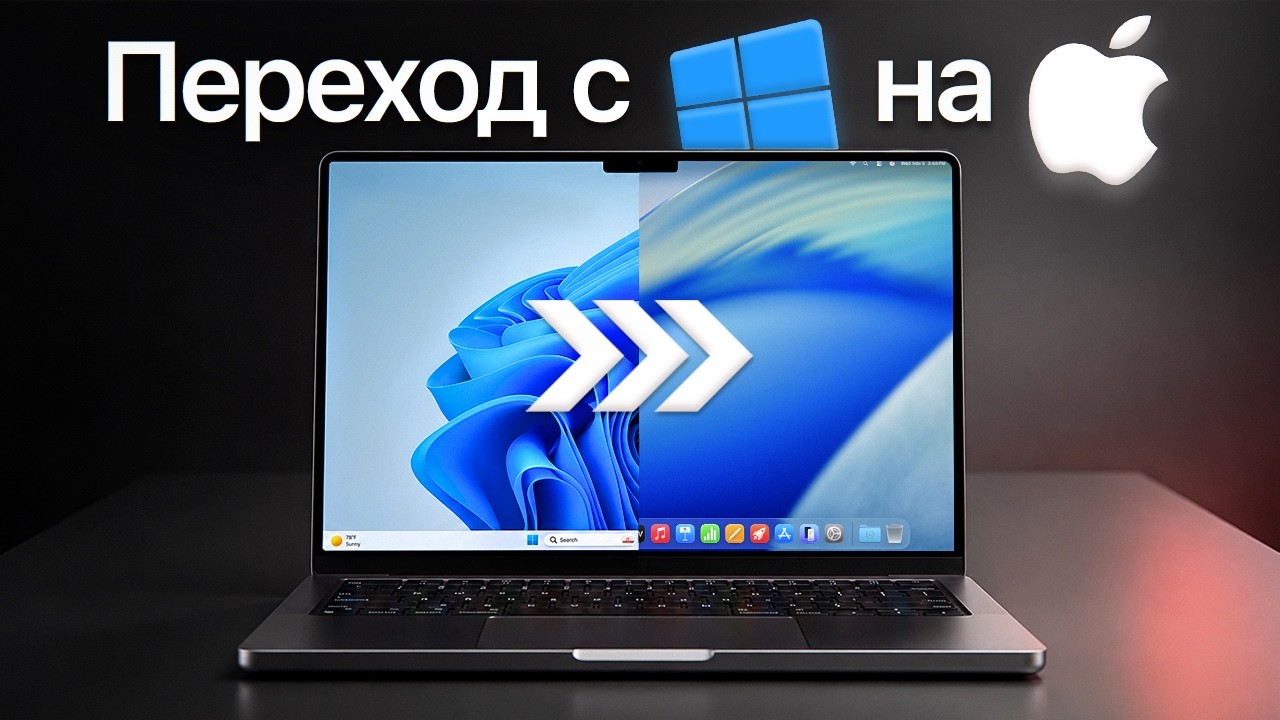
Switching from Windows to Mac almost always starts the same way. The laptop is beautiful, the screen is excellent, the body is pleasant, the trackpad feels like it's from the future. And then — paralysis. Where's the familiar Start menu? Why does the red X close the window but the app keeps running? Where did the C: drive go?
This is where many make a typical mistake. They start judging macOS by Windows rules. The logic is understandable but useless. You don't need to "remake Mac into Windows" — you need to set it up properly once and understand how it thinks. After that, the system stops being annoying and starts saving time every day.
Below is a step-by-step breakdown for those who just opened a MacBook and want to turn the beautiful piece of hardware into a comfortable working tool as quickly as possible. No pretentiousness, no magic, no "just get used to it." Only what genuinely helps in the first days.
Start with Data Transfer
The most boring part usually turns out to be the most important. If you skip the transfer properly and start dragging files manually, within a couple of hours there will be frustration, and within a day — a mess of folders, duplicates, and forgotten bookmarks. Apple solved this problem long ago through Migration Assistant.
The workflow is simple. Connect the old PC and new Mac to the same Wi-Fi network. Then download Migration Assistant for Windows on the Windows computer, and open the built-in Migration Assistant on Mac, selecting transfer from a Windows PC. After entering a verification code, the system will offer to transfer documents, user accounts, email, calendars, and browser bookmarks.
It looks mundane, but the benefit is enormous. Instead of a manual folder-by-folder move, the user gets a proper start — with familiar files, saved email, and their data in place. The process can take from twenty minutes to several hours, but afterward you won't have to hunt for flash drives around the house and remember where that needed PDF was.
Understand the Interface Logic
macOS has a different character. In Windows, almost everything is tied to the program window. On Mac, the active app matters more. Because of this, the system seems strange in the first hours, though in reality it's just organized differently.
The first thing to remember is the top menu bar. It's always at the top of the screen and changes depending on the active program. Safari is open — its menu is at the top. Finder is active — its commands are visible. On the left is always the Apple icon, where basic system actions and Mac info are tucked away.
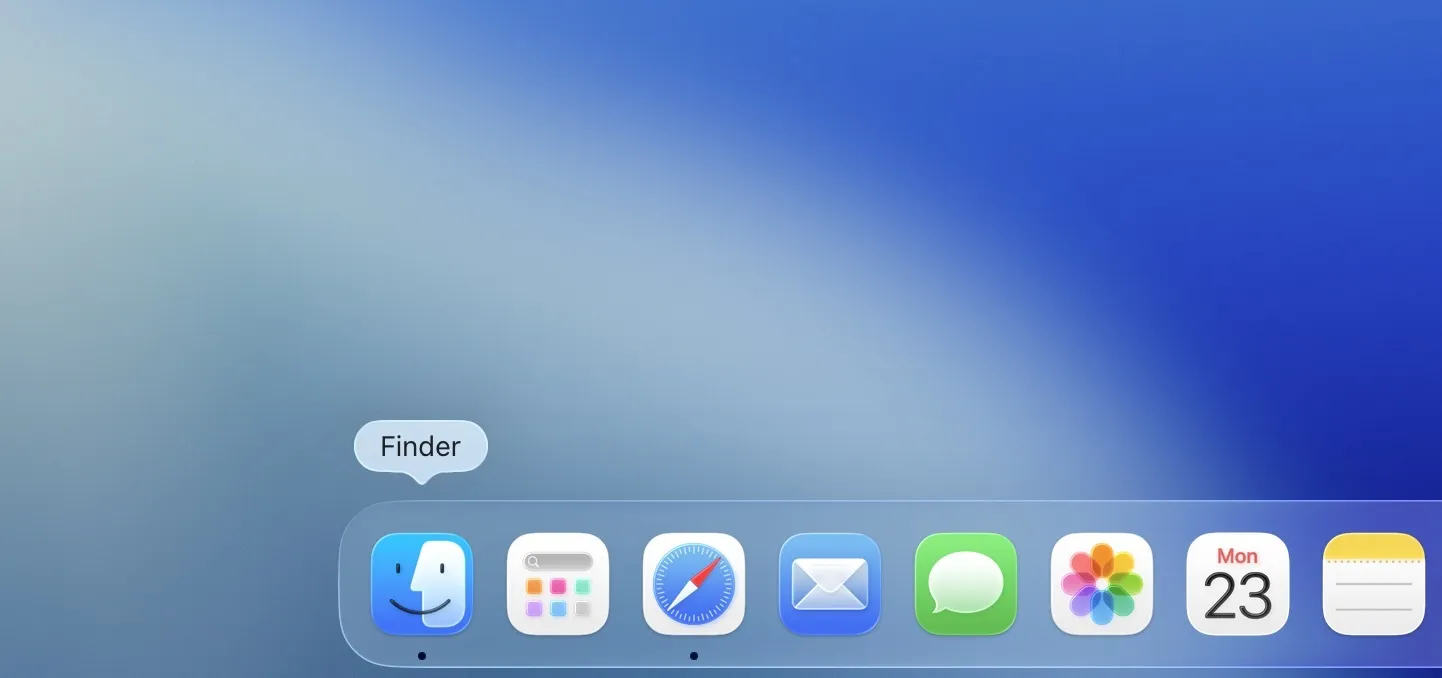
The second important element is the Dock. Essentially, the local app launcher and quick access to frequently used programs. You can drag needed icons here, and simply pull unneeded ones out. A small dot under an app shows it's currently running. On the right are usually Downloads and Trash, and in settings you can easily enable Dock auto-hide so it doesn't eat screen space.
The third element is Launchpad. For a former Windows user, it's easiest to think of as the local Start menu. Click an icon in the Dock or swipe with three fingers on the trackpad — a grid of all apps opens. Next to the clock is Control Center, through which Wi-Fi, Bluetooth, brightness, and sound are quickly configured.
Once the whole scheme clicks in your head, macOS stops looking like a museum of strange decisions. You see an ordinary system with different navigation logic.
Tame Finder Right Away
If Windows trained you on Explorer, Finder is infuriating at first. Where's the familiar drive structure? Why does some "Recents" folder open? How to quickly preview a file without launching a heavy program? The good news — Finder is easily tamed in a couple of minutes.
1. First action — open Finder settings and change the default folder. Instead of Recents, pick your home folder with the house icon. Then every time you launch, you'll see normal working directories instead of a random dump of recent files. There it's also useful to enable showing hard drives on the desktop if that's more familiar.
2. Second action — customize the sidebar. Needed folders are simply dragged into the left Finder column like bookmarks. Projects, documents, archives, source folder — everything can be at hand, without endless wandering through the file system.
3. Third and possibly the most pleasant — Quick Look. Select a file, press space, instantly see contents. Photo, video, PDF, text document — all open instantly without launching a heavy app. After a couple of days working without this feature, returning to regular Explorer feels roughly like trading an elevator for stairs.
It's also worth mastering tags. Colored labels seem trivial until crunch time hits. Tag important files as "Urgent" or "Work" — then find them with one click, even if they're in different folders.
Retrain Your Hands, Not the System
The most painful stage of switching is the keyboard. For years, fingers pressed Ctrl, and now the main button is called Command. Frustrating? Of course. Critical? No. Within a few days, the brain reconfigures.
The basic rule is simple: almost everywhere, Command replaces Ctrl. Copy — Command + C, paste — Command + V, save — same logic. Then pleasant bonuses open up. Option + arrow jumps by words, Command + arrow moves the cursor to the start or end of a line, and adding Shift lets you quickly select large chunks of text.
There are also everyday little things that unexpectedly delight. For example, double-tapping space puts a period at the end of a sentence. Seems trivial, but on long chats and texts, such things unnoticeably speed up work.
It's important to accept another macOS feature — the red X doesn't always fully quit the program. It closes the window, but the app often stays open. If you need a full exit, use Command + Q. Without understanding this logic, in the first days it seems like Mac lives its own life. With understanding — everything becomes predictable.
Master Windows, Gestures, and Spotlight
This is where Mac's real power begins. Not in beautiful animations or the logo on the lid, but in window management and the trackpad.
The green button in the window corner isn't just for maximizing. A quick click sends the app to full-screen mode, and hovering the cursor reveals options for placing the window left or right. The system will suggest a second window for the other half of the screen. For working with text, browser, and messenger simultaneously — very convenient.
Next is Mission Control. Swiping up with three or four fingers shows all open windows and virtual desktops. The logic is visual: one desk for work, another for messengers, a third for music or a browser with personal tabs. Switching between them with left-right swipes quickly becomes a habit.
There's also Stage Manager — a mode that puts the active window in the center and stacks the rest on the side as thumbnails. Some love it immediately, others don't need it at all. But it's worth trying, especially if you want less visual noise on screen.
Now about the trackpad. In settings, almost immediately enable "Tap to Click" and two-finger click as a right-click replacement. Then give natural scrolling a chance. It feels weird at first, but then returning to a regular scroll wheel feels strange. The trackpad's main strength is gestures: two-finger zoom, Mission Control with one motion, launching Launchpad by pinching fingers, showing desktop with the reverse gesture. Within a couple of days, your fingers start flying through the system without pauses and searching for the right buttons.
And finally — Spotlight. The real command center of Mac. Press Command + Space, start typing, get results almost instantly. Spotlight launches apps, finds files, searches text inside documents, calculates expressions, and converts currencies. After this speed, the familiar Windows search starts seeming sleepy and cranky.
Installing Programs Without Dancing with Tambourines
On Windows, installing software often looks like a quest with .exe files, checkboxes, uninstallers, and surprises. On Mac, it's noticeably cleaner.
The first path — App Store. Open, find the program, click download, get a ready app in the system. The second path — .dmg files, through which most programs from the internet are distributed. The image opens, inside is the app icon and a shortcut to the Applications folder. Simply drag one onto the other. Done.
Removal is even easier — open the Applications folder and drag the unwanted app to the trash. After Windows, this approach first even raises suspicion. Too simple. But it's exactly this clean everyday logic that many end up staying on Mac for.
Switching from Windows to Mac doesn't happen in an hour. A week of calm practice is needed. But then, instead of trying to bring back "how it was before," a different feeling comes — the system starts working fast, predictably, and without unnecessary fiddling. And that's when Mac stops being an unfamiliar purchase and becomes a normal everyday working tool.
0 comments