










.png)



























.png)


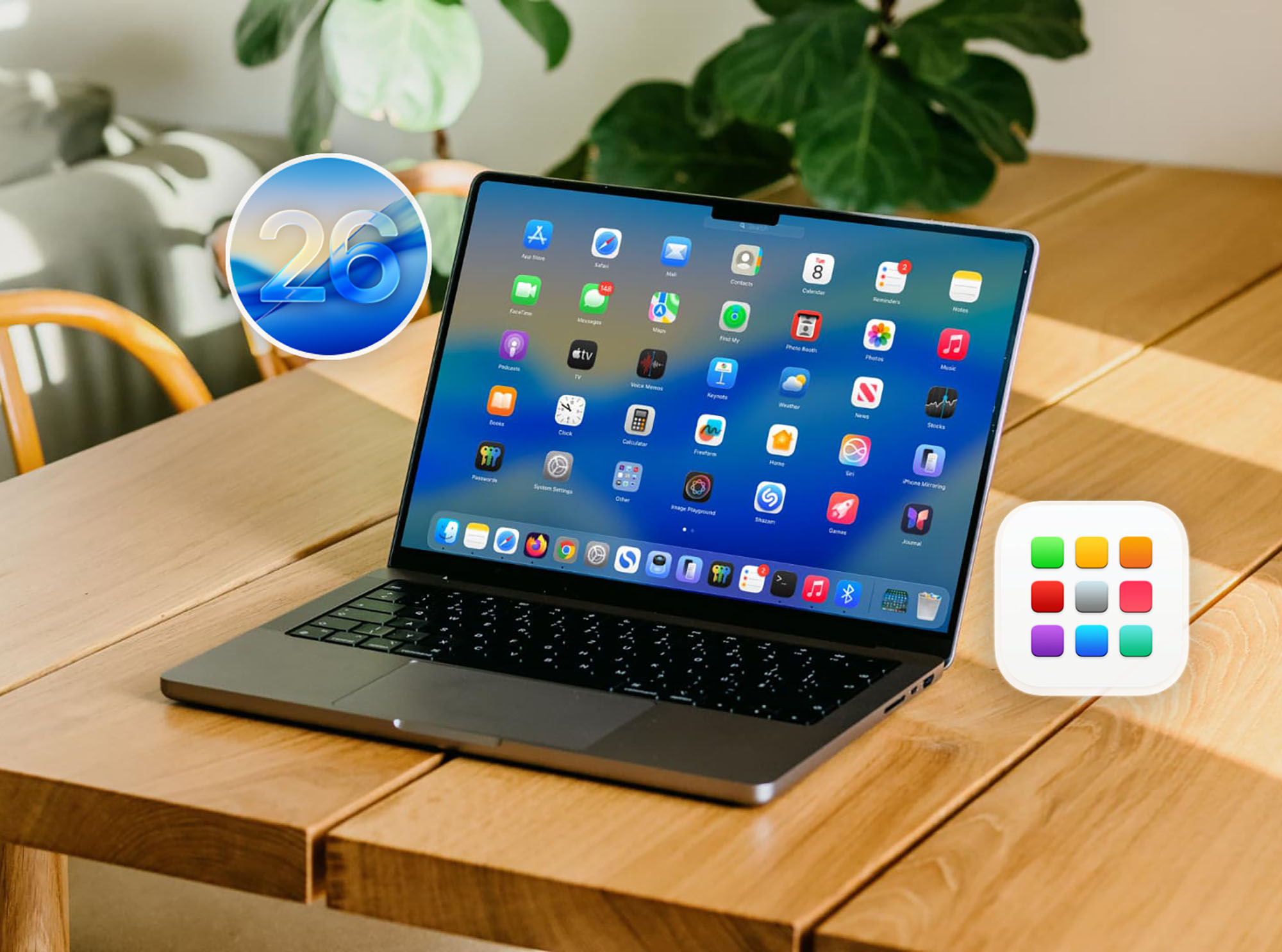
macOS 26 changed Spotlight search behavior, replacing the old Launchpad and making it harder to find apps by icon. If you want to restore the previous way of launching applications, follow these steps:
Step 1: Launch the Terminal app, which you can find in the "Applications" folder or via Spotlight.
Step 2: Enter the following command to create the required directory: sudo mkdir -p /Library/Preferences/FeatureFlags/Domain
Step 3: Enter your administrator password to confirm the action.
Step 4: Enter the command to disable the new Spotlight functionality: sudo defaults write /Library/Preferences/FeatureFlags/Domain/SpotlightUI.plist SpotlightPlus -dict Enabled -bool false
Step 5: Restart your Mac to apply the changes.
Step 6: After restarting, use Spotlight to find Launchpad and pin it to the Dock for convenient access.
By following these instructions, you'll restore the classic way of launching apps. Note that this also disables some new Spotlight features. If you want to revert the changes, run: sudo defaults delete /Library/Preferences/FeatureFlags/Domain/SpotlightUI.plist SpotlightPlus and restart your Mac.
0 comments