




.png)










.png)


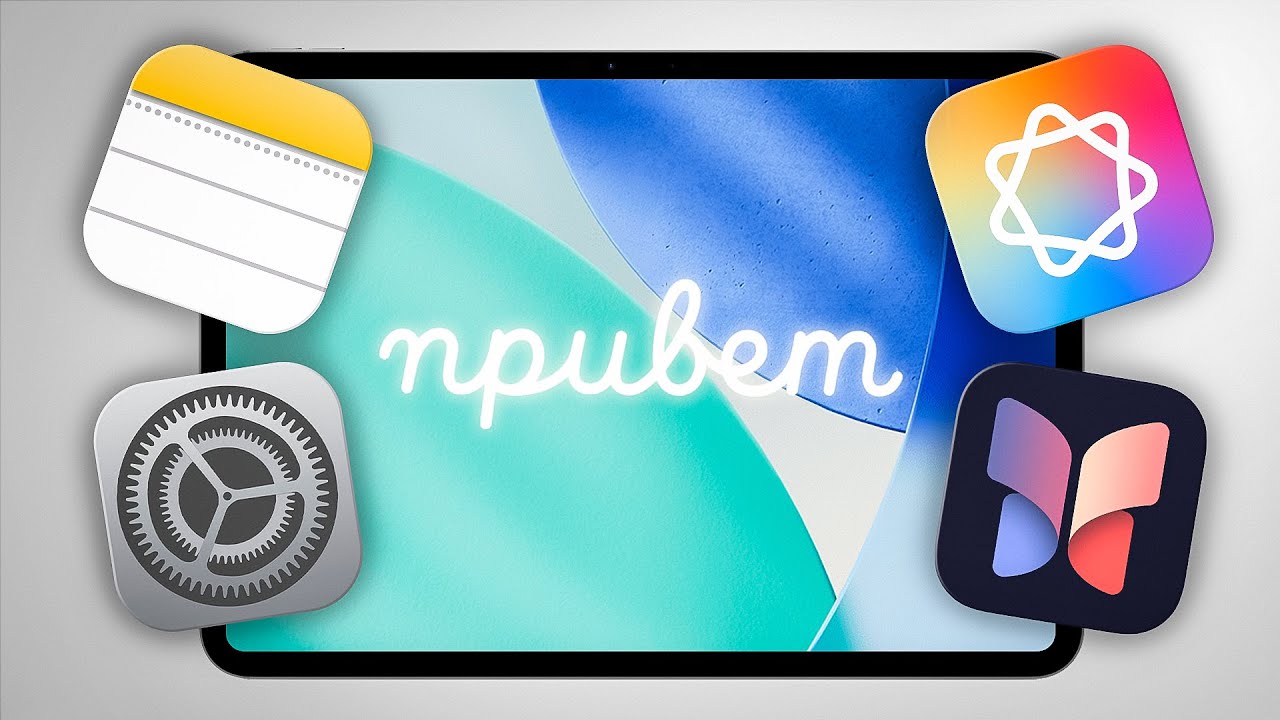
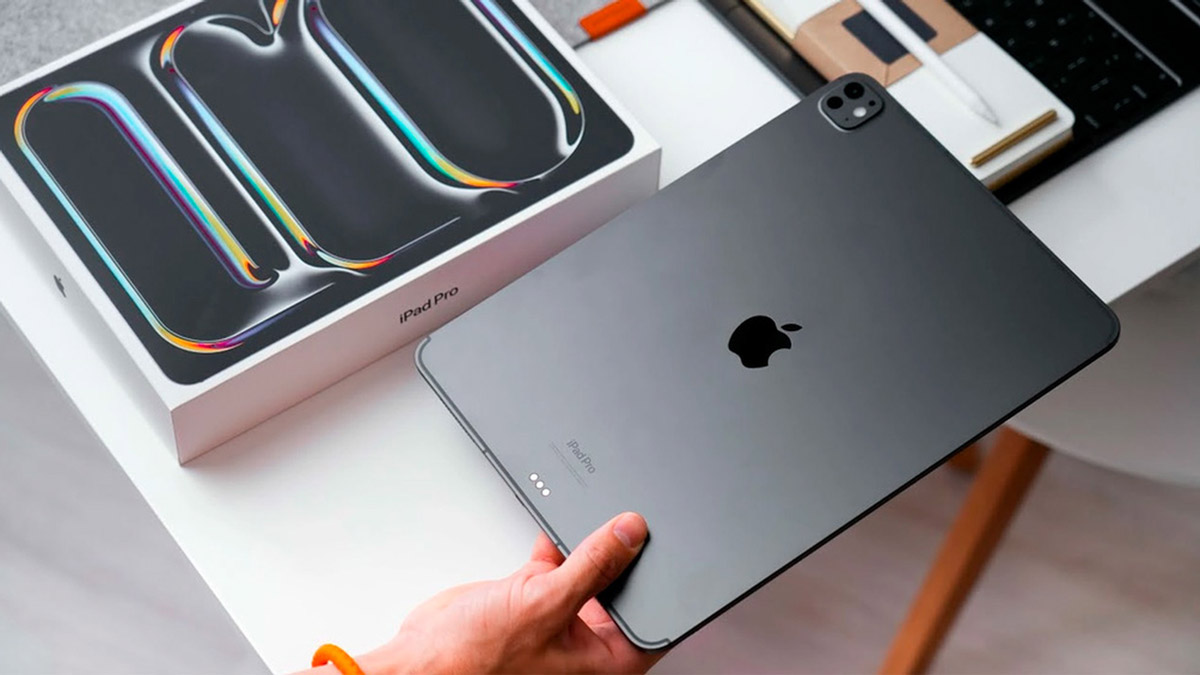
The new iPad is unboxed, Apple ID is linked, everything seems to work. But after a couple of days, you notice: some essential things are hidden in settings, some are turned off by default, and some aren't obvious at all without a hint. Gestures that speed up work, settings that extend battery life, apps that replace paid services — all already in the system. You just need to turn them on.
Below is a detailed guide to first steps with an iPad on iPadOS 26.
First Things First — Update
iPadOS 26 is a major release: a new design, reworked multitasking, different window logic. At launch, there were notable bugs that Apple is gradually fixing. The newer the version, the more stable everything else works.
The path is simple: Settings → General → Software Update. If an update is available — install it immediately. All subsequent settings will work correctly on the current version.
Control Center: Customize It for Yourself
Swipe down from the upper right corner — a panel with buttons appears. By default: Wi-Fi, brightness, volume, music control. The standard set that's enough for most. But if desired, the panel can be completely rebuilt.
Long-press anywhere on the panel — edit mode opens. Elements can be dragged, deleted, and new ones added. The "Add Element" button at the bottom opens a long list: silent mode, timer, screen recording, flashlight, Shortcuts, password manager. Add only what you use regularly, otherwise the panel turns into chaos.
A lesser-known point: if you swipe up within Control Center, a second empty page appears. You can fill that too — then a third opens, then a fourth, theoretically up to six. In practice, more than two pages are rarely needed: the point of "quick" access gets lost.
Lock Screen: Collections and Focus Linking
Long-press on the lock screen — you enter the wallpaper collections section. Here you choose from the built-in iPadOS 26 sets: astronomy, weather, kaleidoscope, emoji, or your own photos.
The clock on the lock screen is customizable: font, weight, color. The standard color is the most contrasty, text reads best in any lighting. At the bottom — widgets: small square (four) or rectangular (two). You can mix them. Widgets come from built-in Apple apps — battery, calendar, clock — and from third parties.
A useful detail most don't notice: each wallpaper collection can be linked to a focus mode. Switch the mode — the entire iPad layout changes, including the home screen icon arrangement. Want to spend less time on the tablet? Create a collection with a minimum of icons and link it to the needed mode. Fewer apps visible — fewer you launch. Simple but effective psychology.
Home Screen: From Standard to Interesting
For a long time, the iPad home screen was customizable only by changing wallpapers. In iPadOS 26, there's noticeably more.
Long-press any icon, tap "Edit" → "Customize." Four appearance modes are available:
- Light — standard, familiar look
- Dark — stricter, works well with dark wallpapers
- Tinted — all icons are recolored to a chosen color with adjustable intensity
- Transparent — icons with the Liquid Glass effect, the new iPadOS 26 design language
The most practical setting here is making icons larger and removing labels. The screen immediately looks cleaner: less text, more breathing room, more professional.
Another detail: icons don't have to line up in a tight grid. Long-press any and move it anywhere — center of the screen, corner, leave empty space around. The iPad remembers the layout.
App Locking
Long-press any app — in the context menu, a "Require Touch ID" option appears. After enabling, the app opens only with a fingerprint.
For games — useless. For Photos, Files, banking apps — convenient. Especially when kids use the iPad or you hand it to acquaintances: let them use it freely, but they won't get into the needed sections without a fingerprint.
Two Settings That Genuinely Extend Battery Life
Many skip these during initial setup. Wrong — the difference is noticeable.
Voice activation for Siri. Go to Settings → Apple Intelligence and Siri → Talk to Siri. At the top is the voice activation option. Sounds convenient, but it works by keeping all the iPad's microphones constantly on in standby mode — 24 hours a day. Meanwhile, most users issue a voice command once every few days at best. Constant listening is a noticeable battery drain. Turn it off and open Siri with a button — the right decision for most.
Notifications and location. In Settings → Notifications, go through the list and leave notifications only where they're genuinely needed. Every app with active notifications refreshes in the background — burns battery, even when the tablet is on the table. Same with location: Settings → Privacy and Security → Location Services. Instagram, App Store, most games don't need location data. Disable without losing functionality — and the battery will be grateful.
Multitasking in iPadOS 26: New Logic
Before working with multiple apps, one step is needed: Settings → Multitasking and Gestures → App Windows. Enable. Without this, some features simply won't appear.
Open any app and swipe down from the very top of the screen — a menu bar appears with commands for the current app. An iPadOS 26 novelty many don't notice.
Split View — split screen. Swipe down from the top, select a second app from the list — both open side by side. Drag the border between them: 50/50, a third to two-thirds, as you like. In iPadOS 26, four apps are available simultaneously — one in each corner of the screen. Previously, the maximum was two.
Slide Over — a floating window on top of the main app. Swipe up from the bottom edge, open the Dock, long-press the needed app and drag it to the center of the screen. The window appears on top of everything — you can move it, tuck it to the side, resize. Convenient for quick tasks: opened the calculator, calculated, closed. Or watching a video while a chat hangs nearby. In iPadOS 26.1, one Slide Over window works at a time; version 26.2 promises expanded capabilities.
Gestures: Cheat Sheet
The iPad is controlled by gestures, and the first few days they seem inconsistent. In reality, the logic is simple — you just need to get used to it.
Gesture |
Action |
Swipe from bottom upward |
Home screen |
Swipe from bottom upward and hold |
Multitasking |
Five-finger pinch |
Home screen |
Four-finger swipe up |
Multitasking |
Swipe from bottom left corner |
Screenshot |
Swipe from bottom right corner |
Quick Note |
Screenshots in iPadOS 26 open immediately in full-screen mode: you can outline the needed area, annotate, or ask ChatGPT a question about the image content. The "five-finger pinch and hold" gesture for multitasking is the most ambiguous: the difference between "home" and "multitasking" is literally fractions of a second, easy to get wrong. Most prefer swiping from the bottom.
Keyboard: The Trackpad Trick
Typing text and made a typo? Don't try to position the cursor between characters with your finger — inconvenient and imprecise. Long-press and hold the spacebar: the keyboard turns into a trackpad, the cursor will move exactly where you need.
The keyboard can be shrunk to iPhone size: open Spotlight (swipe down from the middle of the screen) and pinch the keyboard with two fingers. The reverse gesture — spread fingers — returns the standard size. Not much practical use, but convenient for one-handed use.
Spotlight: Search, Converter, and Calculator in One Place
Swipe down from the middle of the home screen — Spotlight opens. Search works everywhere: in apps, files, notes, email, messages. Opening an app through Spotlight is faster than finding the icon: swiped down, typed the first two letters, pressed Enter — done.
Spotlight searches text inside documents. Remember a couple of words from a file you can't find? Type them — the document appears in results.
Built-in converter and calculator: type "150 USD to AED" — instant answer with the current rate. "50 miles in kilometers" — same, without opening a separate app. If a keyboard is connected to the iPad, the Command + B combination opens Google with any query right from Spotlight.
Stage Manager: When It Makes Sense
In Control Center, there's a Stage Manager icon — three rectangles. When enabled, the iPad starts behaving like a computer: the main app in the center, a panel of recent windows on the left, each window can be moved and resized.
For everyday tablet use on its own — overwhelming. The interface seems confusing, too much empty space. Most users return to the standard mode.
But there's one scenario where Stage Manager fully shines — connecting the iPad to an external monitor. On a large screen, windowed mode works as it should: multiple windows, free movement, convenient switching. It becomes almost a full workstation. If this is your planned work format — worth trying.
Three New Apps in iPadOS 26
Games — a hub for all gaming activity on the device. Tracks progress, gives recommendations, shows friend activity through Game Center, integrates with Apple Arcade. For those who regularly play on iPad — convenient to have everything in one place instead of scattered tabs.
Journal — the app moved from iPhone to iPad. A personal diary, notes, saved thoughts. On iPad, Apple Pencil support was added: you can write and draw by hand, not just type.
Preview — the Mac equivalent for working with PDFs and images. Open a document, add Apple Pencil annotations, edit, export — all without third-party apps. Especially useful for students and anyone working with documents daily.
Built-In Password Manager: Cancel That Third-Party Subscription
The "Passwords" app in iPadOS 26 is a full manager without additional payment. When registering on a website — the iPad offers to create a strong password and save it. On next login, it fills it in automatically.
For sites with two-factor authentication, the app generates one-time codes right on the device: Google Authenticator or Authy aren't needed. Pin the "Passwords" app to Control Center — then the needed login is a couple taps away, without opening Settings.
Those paying for 1Password or a similar service — compare functionality. In most cases, the built-in solution is fully sufficient.
Order of First Actions
If everything above seems like a lot and it's unclear where to start — a short order:
- Install the latest iPadOS 26 update
- Customize Control Center for your tasks
- Turn off voice activation for Siri
- Remove unnecessary notifications and location access
- Set up the lock screen with widgets
- Enable "App Windows" for multitasking
- Add the "Passwords" app to Control Center
After these steps, the iPad becomes noticeably more convenient — without extra subscriptions and searching for third-party solutions. The system already knows how to do everything.
0 comments