












.png)


































.png)


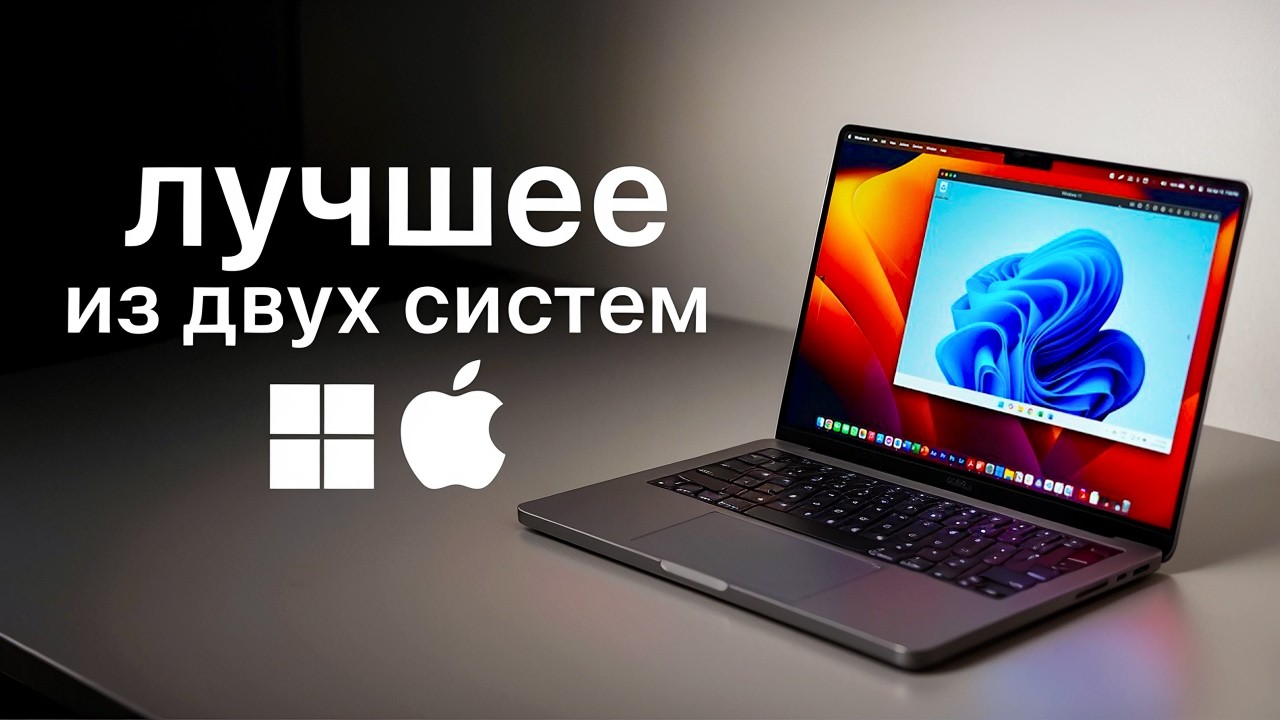
The situation is familiar to many Mac owners: you love everything about Apple's system, but one or two programs critically need Windows. Buying a second laptop for a couple of apps is wasteful and inconvenient. Carrying two devices, switching between them, transferring files back and forth is a separate headache. And giving up the Mac is not something you want to do.
The solution that seems ideal at first glance: run Windows right inside macOS. Here's an honest breakdown of how it works, which approach is relevant in 2026, and where the limits of this solution lie.
Why Two Computers Is a Bad Idea
Before diving into technical solutions, let's understand why the "just buy a second laptop" approach works worse in practice than it seems.
First, financially. Even a mid-range Windows laptop costs a noticeable sum, especially when you already have a powerful Mac. Second, it's inconvenient. Two devices on the desk, two keyboards, two mice, two screens — constant switching disrupts concentration and breaks your workflow.
File transfer is a separate story. You need to open a document on the Mac, edit it on Windows, save it, transfer it back. Through the cloud, through a flash drive, through a messenger to yourself. It sounds absurd, but that's exactly what life with two PCs looks like for most users.
Boot Camp Is No Longer Relevant
The first thing any Mac owner encounters when looking to run Windows is Boot Camp. Apple's official utility let you partition the drive and install a full Windows on a separate disk partition. The system worked directly with the hardware, without layers or emulation — maximum performance, normal gaming.
But Boot Camp had a fundamental drawback: switching between macOS and Windows required a full reboot. Close all apps, save projects, reboot, work in Windows, reboot back. Essentially, two computers in one case that take turns powering on.
However, today Boot Camp is no longer relevant. With the transition to Apple Silicon, Apple completely abandoned the utility. On any modern Mac with M1, M2, M3, or M4, it doesn't work. For current device owners, this path is permanently closed.
Virtualization — Windows as a Regular App
The second path is running Windows not as a separate operating system, but as a regular app inside macOS. A virtual machine is a software "box" inside which Windows lives with all its programs, while the familiar Mac remains outside.
Free virtualization options exist and handle basic tasks. But among all available tools, users and experts consistently highlight one solution — Parallels Desktop.
What Parallels Desktop Can Do
Parallels Desktop is a commercial virtualization app tailored for Mac. Its main advantage over competitors isn't just running Windows side by side, but making the boundary between the two systems almost disappear.
Coherence mode. The key feature of Parallels. Once activated, the Windows desktop disappears completely, and Windows app windows appear right on the macOS desktop. Their icons are added to the Dock next to native Apple apps. Switching between Word for Windows and Pages for Mac happens with the standard Command+Tab — just like between regular apps. The boundary between systems in everyday work is barely noticeable.
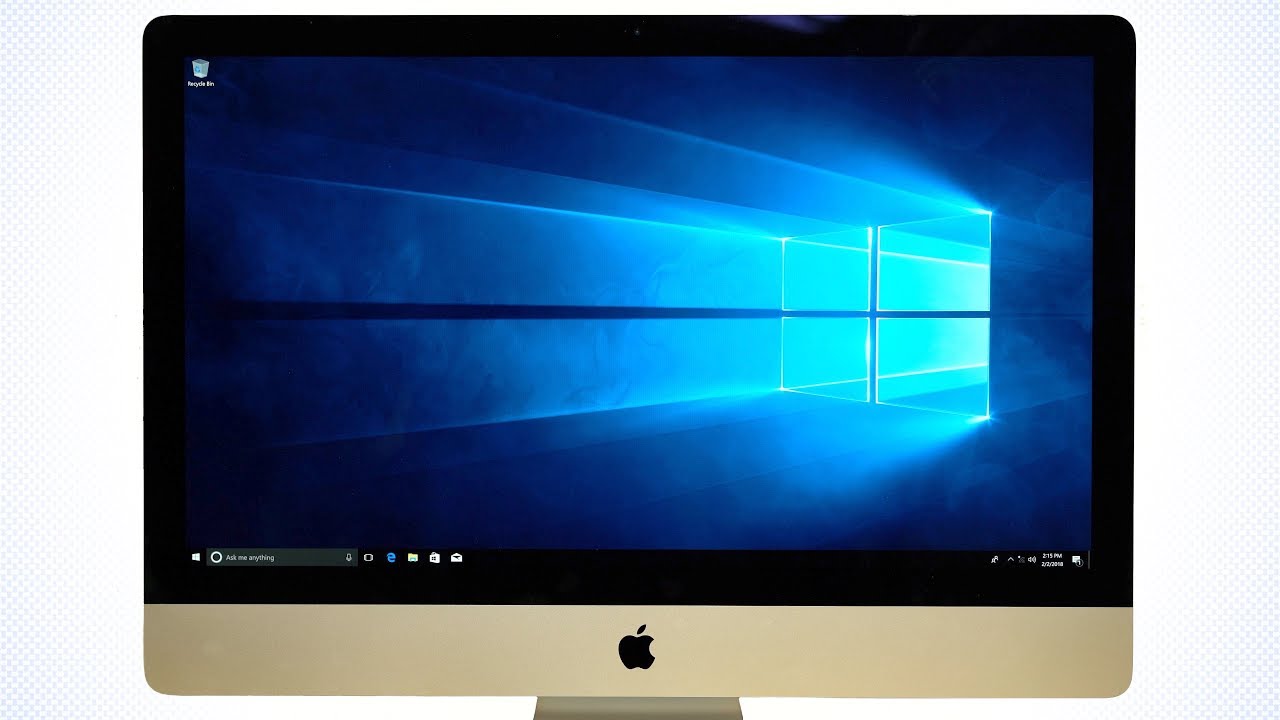
File integration. The data transfer problem is solved elegantly. A file from the macOS desktop can be dragged directly into a Windows program window and back. The clipboard is shared: copy text in Safari with Command+C, paste it into Word with Ctrl+V. Shared folders and network drives are set up automatically during installation. No cloud or flash drives needed.
Performance on Apple Silicon. On M-series chips, Windows runs through x86 architecture emulation. Parallels handles this better than competitors, but there are overhead costs. Office apps, browsers, code editors, and professional specialized software run smoothly without noticeable lag. Heavy workloads are a separate topic — we'll return to that later.
Installation in 20 Minutes
The process is much simpler than it seems. You don't need to look for Windows images or activation keys in advance — Parallels handles everything.
- Download the installation .dmg file from the official Parallels Desktop website
- Drag the icon to the Applications folder and launch it
- On first launch, macOS will ask for the administrator password to complete installation
- Parallels automatically detects the processor type. On Apple Silicon, it immediately offers to download Windows 11 ARM with one click — no Microsoft website or additional steps needed
- Wait for the automatic installation to finish. Parallels will create the virtual machine, install Windows, and the Parallels Tools integration driver package
After installation, it's worth opening the virtual machine settings through the Parallels Control Center and adjusting the allocated RAM and processor cores in the Hardware tab. Default settings are conservative — for heavy applications, allocate more resources.
Three Real-World Scenarios
Editing in Vegas Pro. A folder with video source files sits on the macOS desktop. Vegas Pro launches as a regular window. Video files are dragged from the folder right onto the timeline. Coherence mode is enabled — the Vegas window "sticks" to the Mac desktop, the icon appears in the Dock next to Final Cut. After rendering, the file saves directly to the macOS desktop and opens in QuickTime. No flash drive, no cloud.
Specialized business software. Industry programs — accounting systems, corporate CRMs without Mac versions, engineering utilities — run in Parallels without issues. Coherence mode lets you open them alongside regular Mac apps and work in your familiar workspace.
Office tasks with Windows-specific features. Some Microsoft Office capabilities are more fully implemented in the Windows version than in the Mac version. Complex Excel macros, specific add-ins, corporate templates with Windows-dependent components — for such tasks, Parallels works exactly as needed: fast and without annoying delays.
Where the Solution Falls Apart
An honest conversation about Parallels is impossible without discussing limitations. There are two, and both are significant.
Performance under load. Virtualization isn't magic, it's a compromise. The heavier the task, the more noticeable the losses. In complex Vegas Pro projects with multi-layer video and heavy effects, the system starts to slow down. Launching AAA games through Parallels is pointless — major gaming projects requiring full GPU power won't run properly. Parallels covers office and professional software tasks, but not high-load gaming scenarios.
Price. Parallels Desktop is distributed via subscription — about $100 per year. The amount is small in absolute terms, but given the limited performance, the question of justification becomes pressing. Paying annually for a tool that works well only on a subset of tasks is not an obvious decision.
When to Buy, and When to Look for an Alternative
Before purchasing a subscription, ask yourself an honest question: is there no decent macOS alternative for the program you need?
Video editing is covered by Final Cut Pro or DaVinci Resolve. Office tasks — Pages, Numbers, Keynote, or Microsoft Office for Mac. Work with code, graphics, analytics — almost everything has long been available in native versions. If an alternative exists, switching to it is simpler and cheaper than paying annually for virtualization.
If no alternative exists and the program is genuinely needed — Parallels will handle it. For document workflows, specialized business software, professional industry utilities without Mac versions, and light editing, the solution works exactly as promised. The key is knowing in advance what to expect and not counting on a full replacement for a native system.
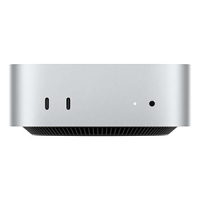
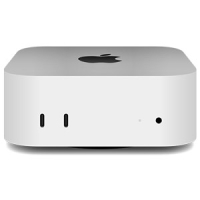
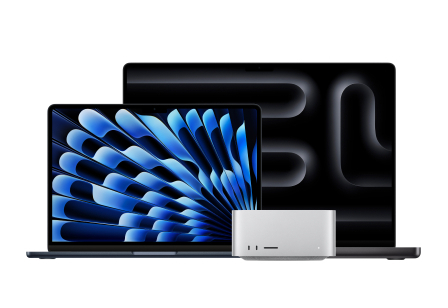
You can find prices for all MacBooks and Mac mini and compare configurations in the Techno Buyer catalog.
0 comments