










.png)




























.png)


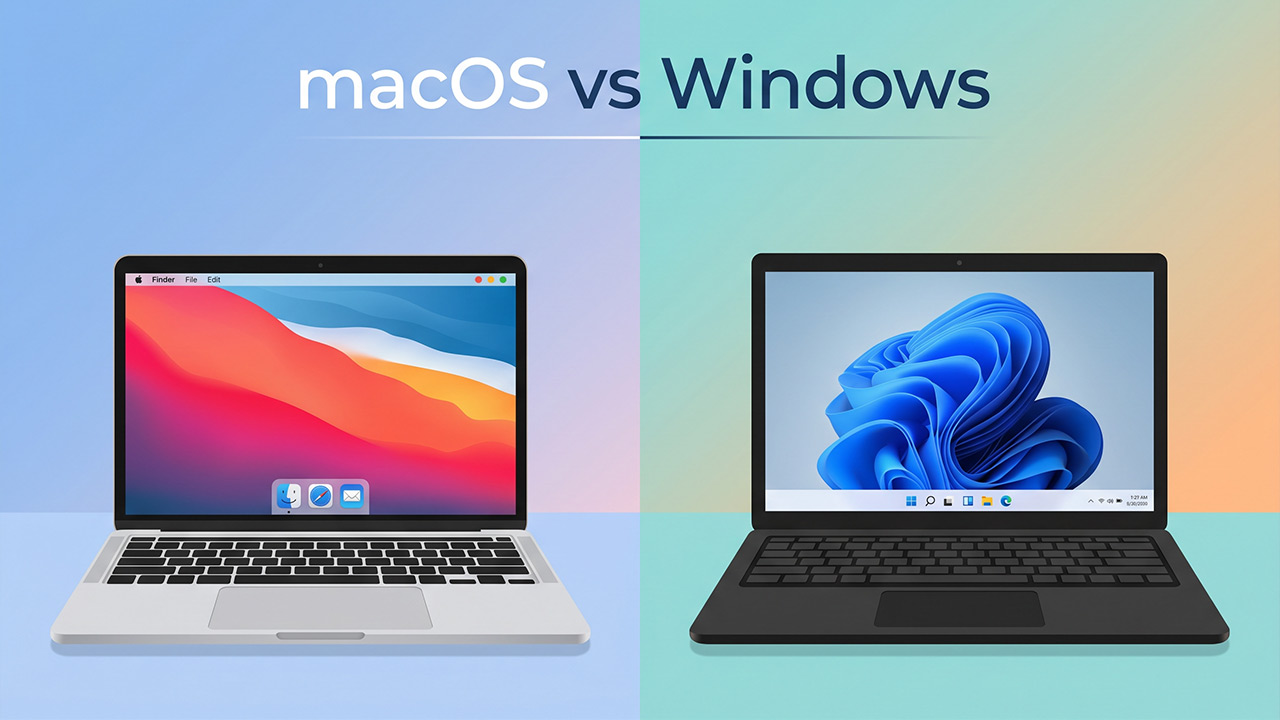
Comparisons of macOS and Windows regularly devolve into arguments about processor power, graphics cards, gaming, and heavy professional software. But let's be honest. Ninety percent of the time at the computer, the user isn't rendering complex 3D graphics or compiling massive codebases. A normal workday consists of hundreds of small routine actions. Open a file, copy a paragraph of text, minimize extra windows, take a screenshot, find a document lost in downloads.
It's in these basic everyday tasks that the real difference between operating systems lies. Both platforms have undeniable advantages and frankly annoying shortcomings. Let's break down factually where Microsoft's product is more convenient, and where Apple's system leaves the competitor no chance.
The Fundamental Difference in System Logic
Before pitting specific features against each other, it's worth understanding the basic difference in approach between the two corporations. Windows runs on thousands of hardware configurations from hundreds of third-party manufacturers. Hence the enormous compatibility, support for legacy software, and complete freedom of action — which you inevitably pay for with a certain chaos. Inside the system, modern settings panels and archaic dialog windows from the 2000s peacefully coexist side by side.
macOS is an elite, closed club. Apple tightly controls both the hardware and software of every device it produces. The result is expressed in remarkable interface coherence, smooth animations, and high stability. In exchange, the user has to play strictly by the company's rules. Changing the basic window management logic or radically reworking the interface isn't possible here. The system is designed from the start so that the person adapts to it, not the other way around.
Desktop and Navigation in Two Worlds
In Microsoft's operating system, navigation centers around the familiar taskbar. The Start button works as the main entrance to all files and programs. On the right are the clock and system tray, with running app icons grouped in the center. The entire command center is always in one place, intuitive, and ready to go.
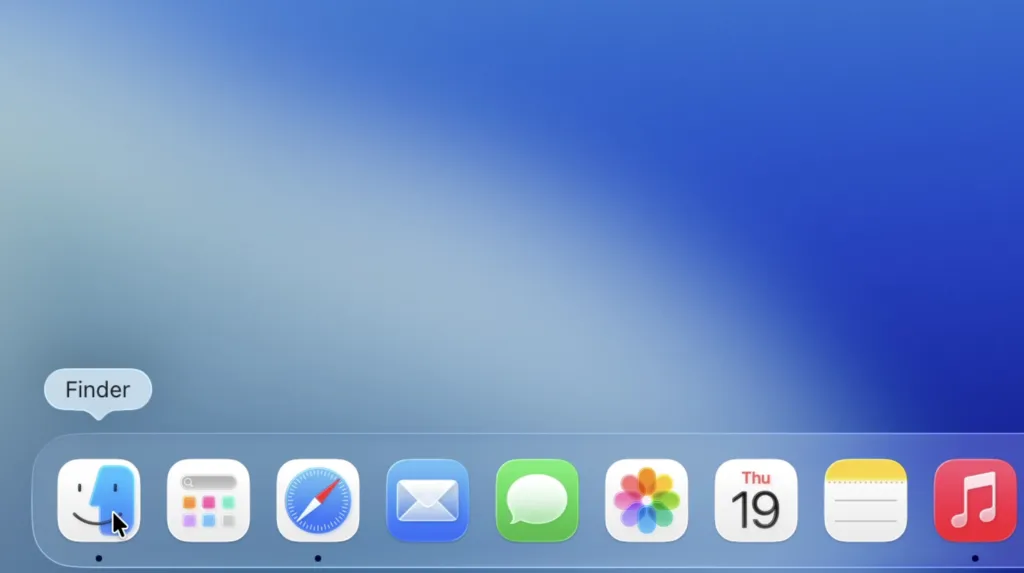
Apple's approach is fundamentally different. At the bottom is the Dock with frequently used app icons, while the main control menu is fixed at the top of the screen. The main catch is that the top bar's contents change depending on the active app. At first, this mechanic confuses newcomers. Click on a browser window — bookmark settings appear at the top. Click on empty desktop — Finder menu appears instantly. Over time, the logic becomes clear: contextual actions are always in the same place, regardless of where the program window is positioned on the display. Both concepts are fully workable, they just require forming completely different muscle memory.
File Management and Clipboard
Here unfolds a real interface battle. Standard File Explorer versus Mac's Finder.
On the Mac side, there's the fantastic Quick Look feature. Select any file, press space, and the system instantly shows the contents. A text document, a heavy PDF, a video clip, a Photoshop project — all open in a fraction of a second without launching cumbersome programs. The tool saves hours of work time monthly. Additionally, Finder's column view makes navigating deep folder structures incredibly visual.
On the Windows side, the clear victory goes to file moving logic and clipboard management. Cutting a document in Explorer is easy — just press the classic keyboard shortcut. On Mac, cutting a file in the usual way is physically impossible. You need to copy the object first, then when pasting into a new folder, hold an additional key for the final move. For newcomers, this mechanic seems non-obvious and causes plenty of justified frustration.
The absolute triumph of Microsoft developers is clipboard history. Pressing two keys opens a panel with everything copied recently: text fragments, links, images. In macOS, the standard clipboard remembers only the last copied item. Want more — install third-party utilities. The absence of such a useful tool in a modern system causes genuine bewilderment.
Installing and Removing Programs
On Windows, the software installation process has long turned into a boring routine. Download an installer, run it, click Next five times, read the license agreement, and carefully search for hidden checkboxes to avoid accidentally installing an unwanted antivirus. For complete removal, you often need to find a special uninstaller or dig deep into the Control Panel.
In macOS, the process is implemented far more elegantly. Download a disk image, open it with a double-click, and simply drag the app icon to the Applications folder. Installation complete. Removal works the same way — the icon simply goes to the trash. No system registry clutter or wandering through hidden folders. In matters of basic system maintenance, Apple's approach wins by a wide margin.
Window Management in Practice
In the discipline of workspace organization, Apple suffers a crushing defeat. The built-in Snap Assist feature makes Windows the undisputed leader in multitasking. Drag a window to the left edge — it perfectly fills exactly half the display. Drag to a corner — it neatly takes a quarter of the screen. The mechanic works intuitively, fast, and phenomenally boosts productivity when working with multiple documents simultaneously.
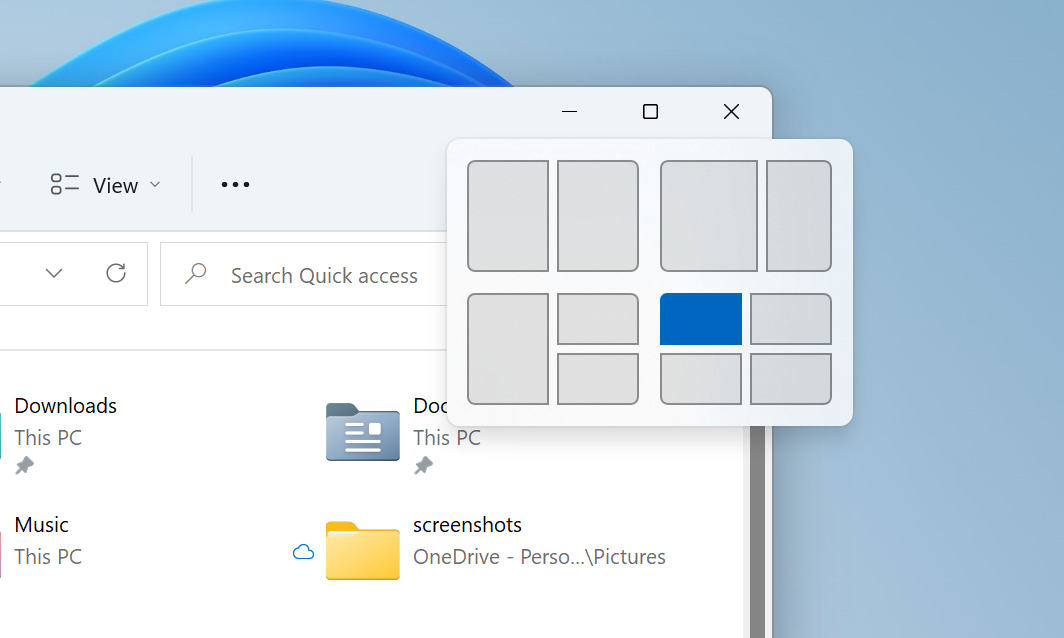
What does macOS offer out of the box? Three colored buttons in the top-left corner of every window. Red closes the window, but often keeps the app running in the background. Yellow minimizes the app to the Dock. Green expands the window to full screen, completely covering other interface elements. Built-in options to snap a window to the edge exist but are implemented awkwardly. The vast majority of experienced Mac users download third-party utilities for proper window management on day one.
Keyboard Shortcuts and Muscle Memory
Switching between systems always comes with breaking old habits. The main adaptation rule — the primary modifier key on Windows is almost everywhere replaced by the Command key on Apple devices. Copying, pasting, undoing, saving documents all work by identical logic.
The nuances lie in switching between running apps. In Microsoft's world, the familiar shortcut cycles through absolutely all open windows. On Mac, the same combination switches only between apps themselves. To switch between individual windows within one program, you need a different, less convenient shortcut. Closing software also takes getting used to. Clicking the red X hides the interface, but fully quitting the process requires a hard keyboard shortcut. Hands get used to the new rules in a couple of weeks, after which the discomfort completely disappears.
System Search and Spotlight Magic
Search in Windows improves over time, but it's endlessly far from ideal. The system often thinks hard, returns irrelevant internet results, or insistently tries to open the built-in browser instead of finding a local file.
On Apple computers, the built-in Spotlight search works superbly. The tool is called with a simple keyboard shortcut and instantly finds documents by content. The search bar can launch programs, work as an advanced calculator, convert currencies and physical units. Professionals often stop clicking Dock icons entirely. It's much faster to invoke the search bar, type the first letters of the needed program, and hit Enter. You get used to this level of speed in one day, after which any other built-in search seems openly broken.
Screenshots and Built-in Screen Recording
Taking screenshots is excellently implemented on both platforms, though the tools differ. In Microsoft's system, a special keyboard shortcut brings up a compact panel for selecting the desired area, a specific window, or the entire screen. After capturing, a convenient built-in editor opens immediately for adding annotations or highlighting important information with a marker.
In macOS, developers added several independent shortcuts. One takes an instant screenshot of the entire screen, another lets you select a specific area. The most powerful shortcut brings up an extended toolbar. With it, you can not only take any type of screenshot but also start quality screen video recording in a couple of clicks without installing third-party software. The finished file's thumbnail appears in the screen corner — convenient for dragging right into an open messenger without first saving to desktop.

Customization and Visual Freedom
Windows is a full-fledged digital construction set. Want to completely transform the interface? No problem. Users have tools to change system icons, set live wallpapers, add informational widgets across the entire desktop, or radically redesign the Start menu. For this freedom, you periodically pay with performance drops or system instability, but the ability to finely tune your workspace to your tastes remains an undeniable advantage.
macOS offers a strictly curated visual style designed by corporate designers. Available appearance settings are: changing the wallpaper, selecting accent colors, and scaling Dock icons. Apple sincerely considers its design decisions optimal and provides no official tools for deep interface intervention. The system always looks neat and cohesive, but there's virtually no room for personalization.
Verdict: Who's Better in the Little Things
Objectively, the perfect operating system doesn't exist. Choosing a working platform always comes down to smart compromises.
Windows' strengths lie in flawless window management, a powerful built-in clipboard history, logical file operations, and boundless freedom of visual customization.
macOS fights back with the genius Spotlight local search, the instant Quick Look document preview, elegant app installation logic, and convenient built-in screen recording tools.
The initial feeling of disorientation when switching from one platform to another is absolutely normal. The human brain adapts to new digital patterns in fourteen days. The key is to clearly understand your everyday tasks and choose the tool whose strengths accelerate your work and whose shortcomings don't cause daily frustration.
0 comments