








.png)




























.png)


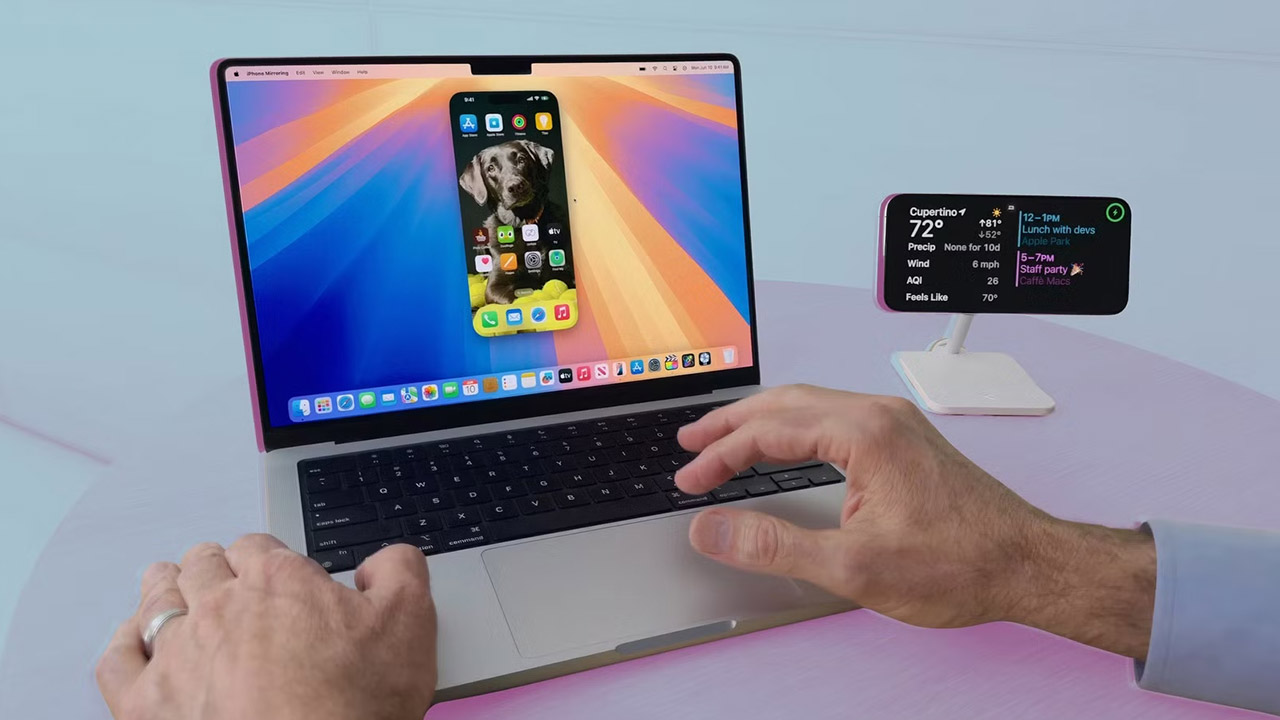
Most owners of a Mac + iPhone combo use it at maybe a third of its real potential. Photos are sent to themselves via messenger. People get up from their desk when the phone rings in another room. They switch between devices as if they were two separate computers. Apple built its ecosystem specifically to make all of this disappear.
Here are ten specific capabilities of the Mac and iPhone combo. Some you may have heard of. But there are also ones that genuinely change your workflow — and most likely, you don't know about them yet.
Handoff and Universal Clipboard
Two features that literally glue iPhone and Mac into a single workspace.
Handoff. You're watching a video in Safari on iPhone on the way home. You sit down at your Mac — and the left side of the Dock already shows a Safari icon with a phone badge. One click — the same page opens on the big screen right where you left off. No searching, no browser history. It works the other way too: start something on Mac, need to leave urgently — unlock your iPhone, open multitasking, and at the bottom there's a suggestion to continue. Handoff works in Safari, Mail, Maps, Notes, and dozens of other apps.
Universal Clipboard. Copy a verification code from an SMS on iPhone — switch to Mac — press Command+V. The code is already there. Works with text, links, photos, anything. It sounds like a small thing, but this happens dozens of times in a workday.
How to enable: on iPhone — Settings → General → AirPlay & Handoff. On Mac — System Settings → General → AirDrop & Handoff.
Calls and Messages Right on Mac
Your phone is charging in another room. Music is playing in your headphones at the computer. An incoming call — and it's missed.
With the right settings, an incoming call on iPhone appears as a notification on the Mac screen. Accept, decline, reply with a message — all from the computer without getting up. You can talk through the Mac's microphone or connected headphones.
You can also call from Mac. Open Contacts, click the phone icon next to a number. Or even faster: see a number on a website — select it, right-click — "Call using iPhone."
SMS messages work similarly. All verification codes from banks, courier notifications, and regular messages from your number arrive right in the Messages app on Mac. Reaching for the phone for a code is no longer necessary.
How to enable: iPhone → Settings → Phone → Calls on Other Devices → toggle next to your Mac. Messages: iPhone → Settings → Messages → Text Message Forwarding → activate Mac.
iPhone as Webcam and Scanner
Built-in laptop cameras are an openly weak point of most models, including MacBooks. Blurry picture, poor performance in low light. And yet, in every iPhone owner's pocket lies a flagship-level camera.
Continuity Camera lets you use the iPhone's camera as a webcam for Mac wirelessly. Place the phone next to the computer, open Zoom or any other video calling service, select iPhone in camera settings — and the picture changes dramatically.
Additional modes:
- Portrait — blurs the background, like in the camera app
- Studio Light — software face lighting even in a dark room
- Center Stage — automatically tracks your face and keeps it in frame as you move
- Desk View — simultaneously shows your face and desk surface through the ultrawide lens. Great for presentations, document review, unboxings
Document scanning works just as elegantly. In Notes or Pages on Mac, right-click and select "Import from iPhone" → "Scan Documents." iPhone instantly activates the camera in scanner mode. Aim, photograph — and a clean, quality scan appears right in the document on Mac. A physical scanner is no longer needed for such tasks.
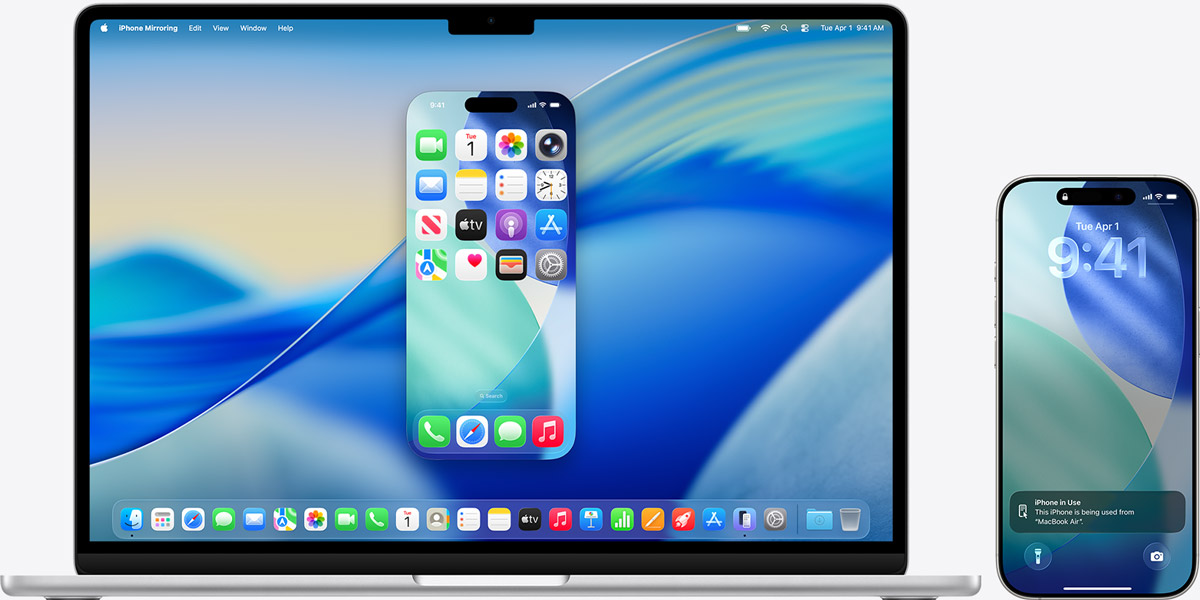
iPhone Mirroring: Full Phone Control from Mac
Your phone is charging in the bedroom. You need to open a banking app that's not on Mac. Before — you'd get up and go. Now you open iPhone Mirroring on Mac — and a window with an exact copy of your phone screen appears on the desktop. Control via mouse and keyboard: swipes, launching apps, typing. Meanwhile, the physical iPhone stays locked.
You can do everything you'd do on the phone: order food through an app, scroll a social media feed that doesn't have a Mac version, reply in a messenger. Files drag and drop directly — grab a photo from the Mac desktop, drop it into a chat in the iPhone window. Works the other way too. No lag.
iPhone Widgets on Mac Desktop
A logical addition to Mirroring. If your phone has a favorite app with a convenient widget, you can place it right on the Mac desktop — even if the app itself isn't on Mac.
Widget data updates in real time from the iPhone. Habit tracker, weather from a non-standard app, step counter — all available on the computer screen without unnecessary switching.
How to set up: right-click the Mac desktop → "Edit Widgets" → your iPhone widgets appear in the list → drag the ones you want.
Instant Hotspot Without Passwords
Wi-Fi goes down, and work can't wait. The usual scenario — grab the phone, open settings, enable hotspot, find the network on Mac, enter a password. Half a minute lost, concentration broken.
Instant Hotspot removes all extra steps. If Mac and iPhone are under the same Apple ID, the iPhone automatically appears in the Mac's Wi-Fi list. No need to take the phone out of your pocket — just select it from the list, and Mac activates the hotspot and connects. The Mac menu bar shows the cellular signal strength and phone battery level.
Some users have abandoned home routers entirely: sharing internet from iPhone to Mac is simpler and more cost-effective with certain data plans.
Remote Access to Home Mac
The Screen Sharing feature gives full remote control over your home Mac from anywhere in the world. A forgotten file, helping parents with settings, continuing work on a project while traveling — all solved without physical presence at the computer.
How to enable: on the home Mac → System Settings → Sharing → Screen Sharing. Then connect from any other Mac via Finder or the Screen Sharing app.
AirDrop and Apple Watch Unlock
Two small features that together with the rest form the complete picture.
AirDrop between your own devices. Take a photo on iPhone — open AirDrop — select your Mac — a second later, the photo is in the Downloads folder on the computer. No cables, no messengers, no file size limits.
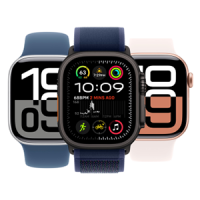
Mac unlock via Apple Watch. If you also have a Watch in the combo, you'll enter the Mac password manually exactly zero times. Walk up to the computer, open the lid — the watch unlocks the Mac in a fraction of a second. This happens dozens of times during a workday, and each time feels like a small gift.
Three Conditions to Make Everything Work
Most of the described features enable automatically when three conditions are met. Check them once — and you won't need to return to settings:
- Same Apple ID on iPhone and Mac — mandatory for Handoff, Instant Hotspot, Universal Clipboard, and Mirroring
- Bluetooth enabled on both devices — needed for Handoff and Instant Hotspot
- Wi-Fi enabled on both devices — necessary for Continuity Camera, Mirroring, and file transfer
If all three points are met, features start working without additional setup.
Individually, each feature saves seconds. Together — it's 20–30 minutes a day that used to go to mechanical fiddling: getting up for the phone, finding a file, entering a password, passing along a code. Try enabling even three or four features from the list — and within a week, you'll struggle to remember how you worked without them.
0 comments