











.png)


































.png)


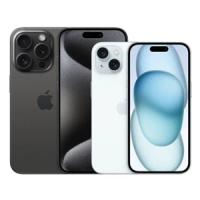
Transferring data between iPhone and Mac can be seamless and fast when you leverage the Apple ecosystem. Here's a simple approach to file sharing without third-party apps or services.
Using iCloud for Sync
1. Enable iCloud sync for your Documents and Desktop folders on Mac. This ensures automatic updates and access to your files at any time.
2. Set up screenshots to save to a dedicated folder to avoid overloading your cloud storage. Use Command + Shift + 5 to change the screenshot destination.
3. To optimize iCloud usage, exclude unnecessary folders from sync. Add a special character or tag to the folder name to exclude it.
Convenient Access on iPhone
4. Create a Shortcut on your iPhone that opens a specific iCloud folder with one tap.
5. Place this Shortcut widget on your iPhone home screen for quick access to synced files.
How to Transfer Files Quickly
To transfer a file, simply save it to your Mac desktop or a chosen folder on your iPhone. Once synced via iCloud, you can work with it anywhere — regardless of physical proximity between devices, bypassing the need for AirDrop.
0 comments