


.png)


.png)


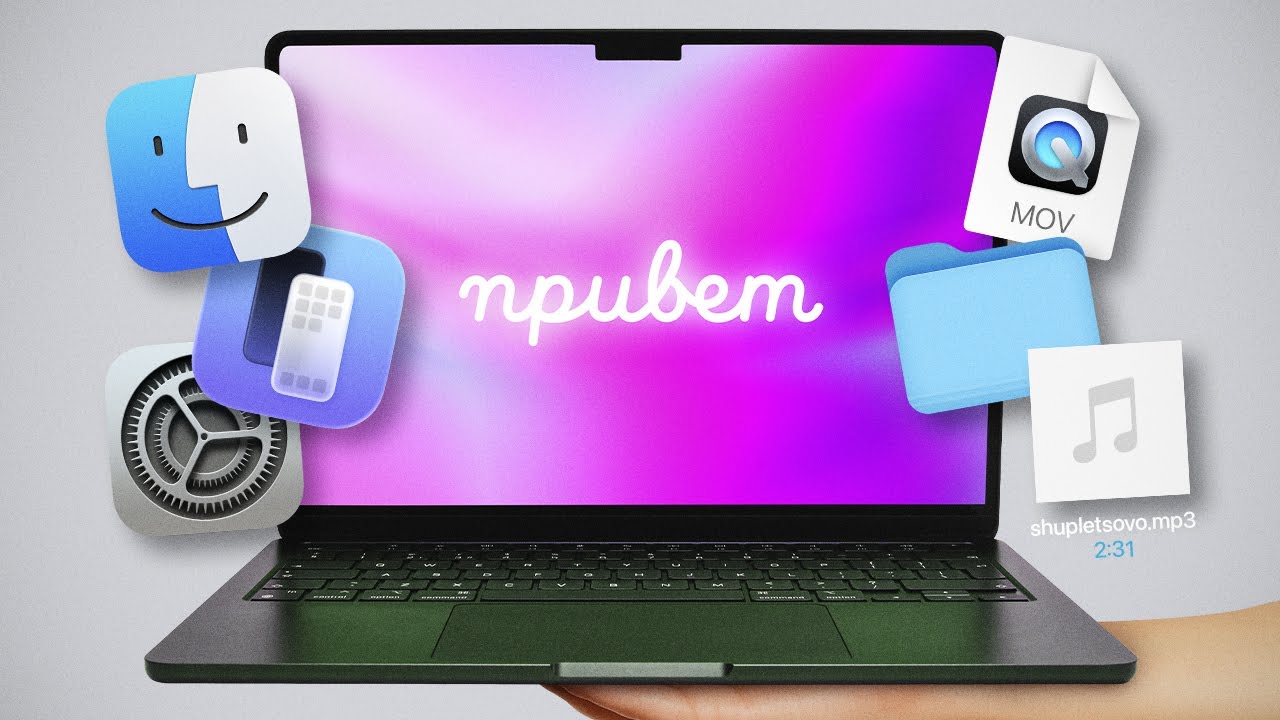
Where's the Start button? Why didn't closing a window close the app? Where did the files go? These questions arise for everyone who opens a MacBook for the first time after Windows. For the first two days, the feeling is one — you've entered a parallel universe where everything is familiar but works differently.
Good news: macOS isn't harder, it's just different. Once you understand its logic, working becomes faster than on any other system. This guide will take you from zero to confident user: from the basic interface to hidden features that many don't discover even after a year of use.
Top Bar: Where All System Control Lives
On Windows, each program had its own menu inside the window. On Mac — one shared bar at the top of the screen that changes depending on the active app. Opened Safari — Safari menu. Switched to Finder — Finder menu. Unfamiliar for the first couple of days, then it becomes logical: the menu is always in one place, your eyes find it automatically.
On the left of the bar — the Apple logo. This is the system control center: shut down and restart the computer, force-quit frozen apps, system settings. All in one place. On the right — the status bar: battery, Wi-Fi, date, time, volume.
Click the toggle icon in the upper right corner — Control Center opens. From here, you change volume, connect to Bluetooth devices, enable Do Not Disturb. Any element can be dragged to the top bar and pinned — for example, a media player button to pause in one click without opening a separate window.
Click the date and time — a notification panel with widgets slides out. You can add weather, calendar, notes — everything important at a glance, without opening apps.
Dock and File Management: More Convenient Than It Seems
At the bottom of the screen — the Dock, a quick-access panel. On the left is Launchpad — all installed apps in one place. Any app can be dragged from Launchpad to the Dock and launched with one click.
On the right — the Downloads folder. But you can add any other folder: just drag it to the right part of the Dock. Folders expand right from there as a fan, grid, or list — selected via right-click.
Now a feature few know about on day one: any file can be dragged onto an app icon in the Dock — and it opens in that specific app. Drag a photo to Photos — it imports. Drag a PDF to Mail — it attaches to a new email. Seems minor, but in practice this is a constant workflow.
Window Buttons: Red Doesn't Close, Green Doesn't Maximize
Three buttons in the upper left corner of any window — red, yellow, green. This is where every beginner stumbles.
Red — closes the window but doesn't quit the app. It keeps running in the background. To fully close — Command + Q.
Yellow — minimizes the window to the Dock. Useful when listening to music and don't want to see the player window. Shortcut — Command + M.
Green — switches to full-screen mode. The Dock and top bar disappear. To bring them back — move the cursor to the screen edge. To exit full-screen — click the green button again.
Plus Command + H — hide the app. It doesn't close or minimize, just becomes invisible. Bring it back — click the icon in the Dock.
Multitasking: Ten Open Apps — Not a Problem
To switch between apps — Command + Tab. Hold Command, press Tab until you reach the one you want, release. If multiple windows of one app are open — Command + ` (backtick, next to the number 1 key) cycles through windows of the same app.
Mission Control — a bird's-eye view of everything that's open. Invoked with F3 or a three-finger swipe up on the trackpad. All windows and desktops at once, click the one you need — you're right there. Indispensable when working with many programs simultaneously.
Window snapping. Drag a window to a screen edge or corner — it takes up the corresponding portion. With Option held — snaps instantly. Two documents side by side for comparison — three seconds.
Stage Manager — for those who need focus. Find it in Control Center. All open apps line up on the left in a stack, only the active one in the center. The rest don't interfere but are accessible with one click. Works well when you need to not be distracted.
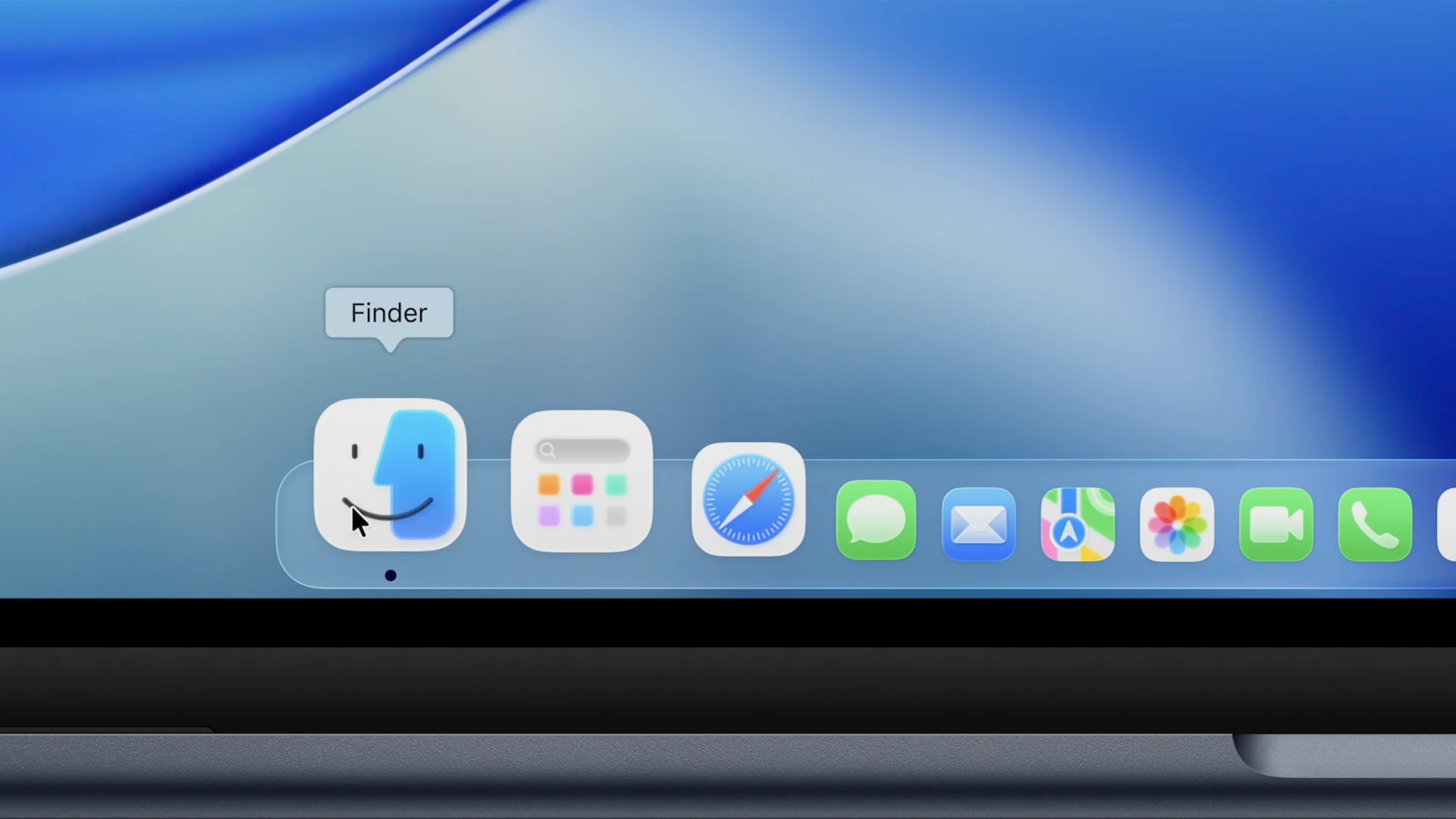
Finder: How to Configure It Once and Stop Suffering
Finder is the "Explorer" on Mac. Four file display views: icons, list, columns, gallery. For starters, columns work best: folder structure on the left, contents on the right. Very clear until you're used to the file organization in the system.
Three settings worth making immediately:
In the "View" menu, enable "Show Path Bar" — a bar with the full path to the current folder appears at the bottom of the window. You'll stop getting lost in deep structures.
In Finder settings, change the default folder — instead of "Recents," set "Documents" or "Downloads," depending on what you open most often.
In the "View" menu, enable "Show Tab Bar" — Finder starts working like a browser. Folders open in tabs, files drag between them. Much more convenient than a bunch of separate windows.
And last: any folder can be dragged to the sidebar on the left — it pins there and opens in one click.
Three macOS Features Found Nowhere Else
This is what truly sets Mac apart from other systems. Not pretty icons or smooth animations — but specific tools that work so conveniently that afterwards, on other systems, they're noticeably missed.
Spotlight: Search, Calculator, and Converter in One Window
Command + Space — the Spotlight bar appears. It searches everything: files, apps, emails, notes. Opening apps through Spotlight is faster than through the Dock or Launchpad: pressed Command + Space, typed "Safari," Enter — the browser opened.
But it's not just search. Spotlight calculates right in the bar: type "150 USD to AED" — immediate result. "50 miles to kilometers" — instant. And another trick: type a question and press Command + B — Google opens with that query. No need to open a browser.
Time Machine: Can Restore Any File from Any Day
Connect an external SSD, go to Settings → General → Time Machine, designate it as the backup disk. Every time you connect, the Mac automatically takes a full system snapshot.
Deleted an important file and noticed a week later? Open Time Machine, scroll back through days and see Finder as it was on that day. Find the file — restore. Sounds like magic, works like a fact. Set up once — and forget that you can lose files forever.
Built-In Password Manager
A separate "Passwords" app comes with macOS and covers the needs of most people without third-party services. When registering on a website, the Mac offers to create a strong password and save it. On next login — it fills it in automatically. For sites with two-factor authentication, it generates one-time codes right in the app — Google Authenticator isn't needed.
If you pin "Passwords" to the top bar, the needed login is two clicks away at any moment.
Trackpad: How to Double Your Work Speed
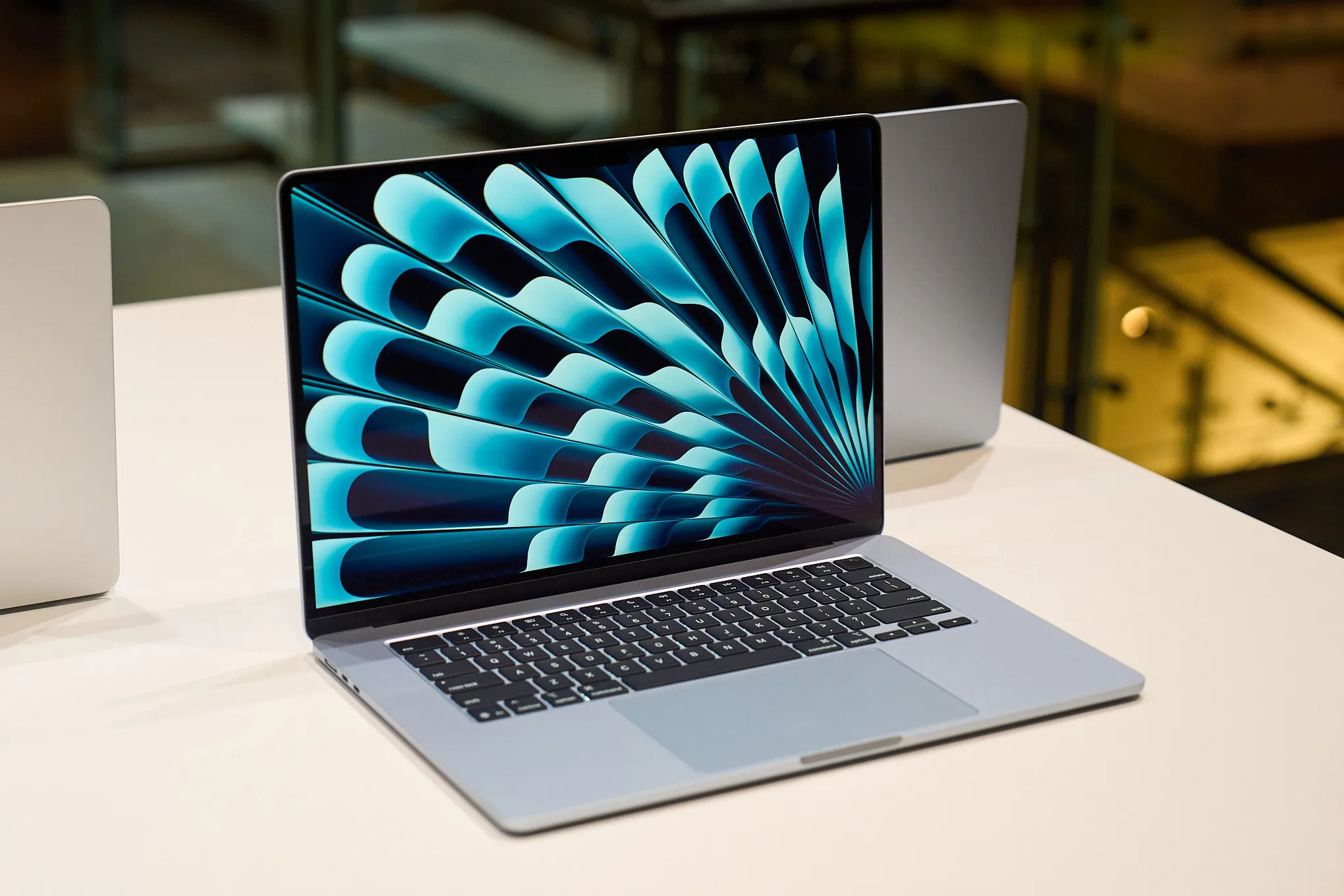
If you use the trackpad only for clicks and scrolling — half the MacBook's capabilities are simply unused. Trackpad gestures are a full control language that over time becomes faster than a mouse.
Five gestures to learn first:
- Three fingers up — Mission Control, overview of all windows
- Three fingers left/right — switch between desktops and full-screen apps
- Two fingers from the right edge leftward — notification panel
- Two fingers right in a browser — back to the previous page
- Five-finger pinch — Launchpad with all apps
And two settings that make the trackpad a fundamentally different device:
"Tap to click" — Settings → Trackpad. After this, you don't need to press the trackpad until it clicks, a light tap is enough. The difference is felt in five minutes.
Tracking speed to maximum — same place. By default, the cursor crawls. At maximum — it flies. After this setting, it's unclear how it was otherwise.
Where to Start Right Now
You don't need to memorize everything at once. Three things for day one are enough:
- Enable "Tap to click" in trackpad settings and increase speed — this changes the feel of work immediately
- Try Spotlight (Command + Space) for opening apps — in a day it'll become a reflex
- Set up Time Machine with any external drive — once and for all
The rest will come on its own. MacBook is a system where you can and should explore: click, try gestures, go into settings. In a week, many things will seem so obvious that you'll want to go back to other systems less.
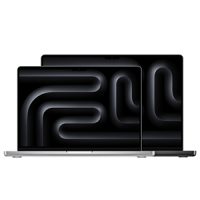
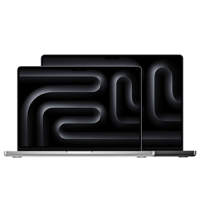
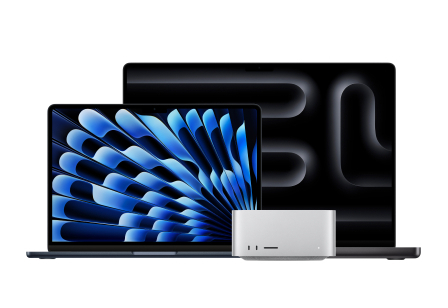
You can check current MacBook Air and MacBook Pro models with fast delivery in the Techno Buyer catalog.
0 comments