










.png)
























.png)


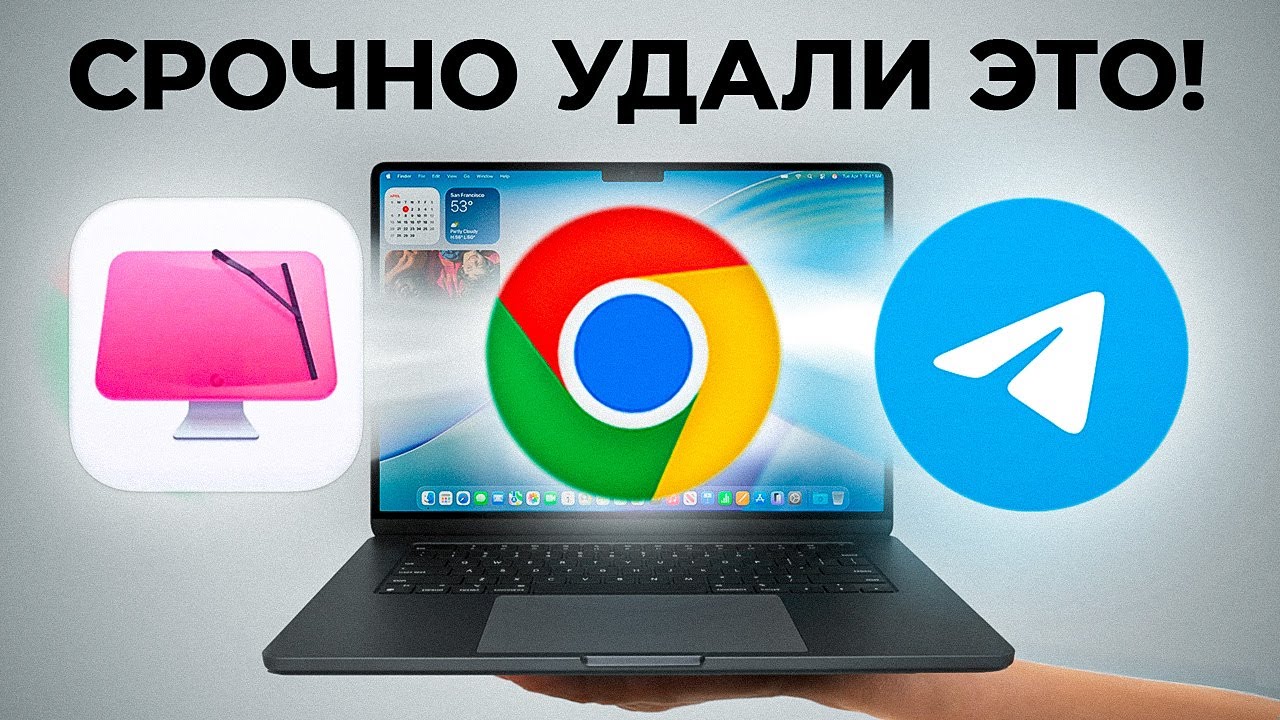
There are apps used by millions — and at the same time, they leak data, kill battery life, or give hackers direct access to your computer. Not viruses or cracked software. Regular, popular, with good ratings in the App Store and Chrome Web Store.
Below are five representatives of such software and specific replacements for each.
Google Chrome: Beautiful but Resource-Hungry
Most MacBook users spend hours in the browser every day. That's why the choice of browser affects everything: work speed, body temperature, battery life.
Chrome works. It opens sites, plays YouTube, has tons of extensions. But for this convenience, the system pays with resources. Chrome devours RAM as if the MacBook has an infinite supply. Opened a dozen tabs — the laptop starts slowing down and heating up. The "18 hours of battery life" Apple promises for M-chips can be forgotten: with Chrome, you'll need a power outlet in about four hours of active work.
Google has optimized Chrome over the years, but the browser still loses to Safari, which is developed specifically for macOS and the Apple Silicon architecture. Safari runs faster, loads the system less, and saves battery noticeably — simply because it was created for this platform, not ported to it.
What to use instead. Safari — the obvious choice for those who care about battery life. Arc — for those who want more features for organizing their workflow without sacrificing performance.
Browser Extensions: A Trojan Horse
Extensions seem like harmless little things. In reality — one of the main entry points for problems. And not from dark-web sites: even in the official Chrome store, malicious software is regularly found.
In 2020, cybersecurity experts discovered more than a hundred malicious Chrome extensions. Total installs — 33 million. The extensions disguised themselves as useful utilities: file converters, phishing protectors, translators. Pure irony.
Such software can steal credit card data, intercept passwords, track every site in browser history. Google removes them after discovery, but the problem reproduces again and again.
Three rules to avoid getting caught:
- Install only from official stores — and only with a large number of downloads and real reviews. 200 installs and three reviews — already a reason to be suspicious
- Read what permissions the extension requests. If a calculator asks for access to all tabs and history — red flag
- Periodically check the list of installed extensions and remove unused ones. The fewer extensions — the fewer potential vulnerabilities
Antivirus on Mac: Why Pay When Protection Is Built In
A third-party antivirus on a MacBook in 2026 is unnecessary. Not because Mac can't get a virus, but because the built-in protection already handles it, and a third-party antivirus creates more problems than it solves.
Simple math: macOS holds about 15% of the market, Windows — about 75%. If you develop malware for profit, where do you go? Where there are five times more potential victims. That's why the vast majority of viruses are written for Windows.
Meanwhile, macOS contains several layers of protection that most users simply don't know about:
- Notarization — Apple scans every app for malicious code before installation. A developer distributing apps outside the App Store must pass this check
- Gatekeeper — checks the app at each installation: did it pass Apple's check, is the security certificate revoked
- XProtect — a built-in antivirus module few have heard of. Automatically scans apps for known threats
- FileVault and Firewall — disk encryption and flexible access control for apps to the camera, microphone, and file system
Third-party antivirus runs on top of all this and itself becomes a source of problems: constantly runs in the background, scans the disk, loads the CPU and RAM. The MacBook slows down, heats up, battery drains faster. And if an actual infection happens — reinstalling a clean macOS takes about twenty minutes and solves the problem for sure, without subscriptions and dubious utilities.
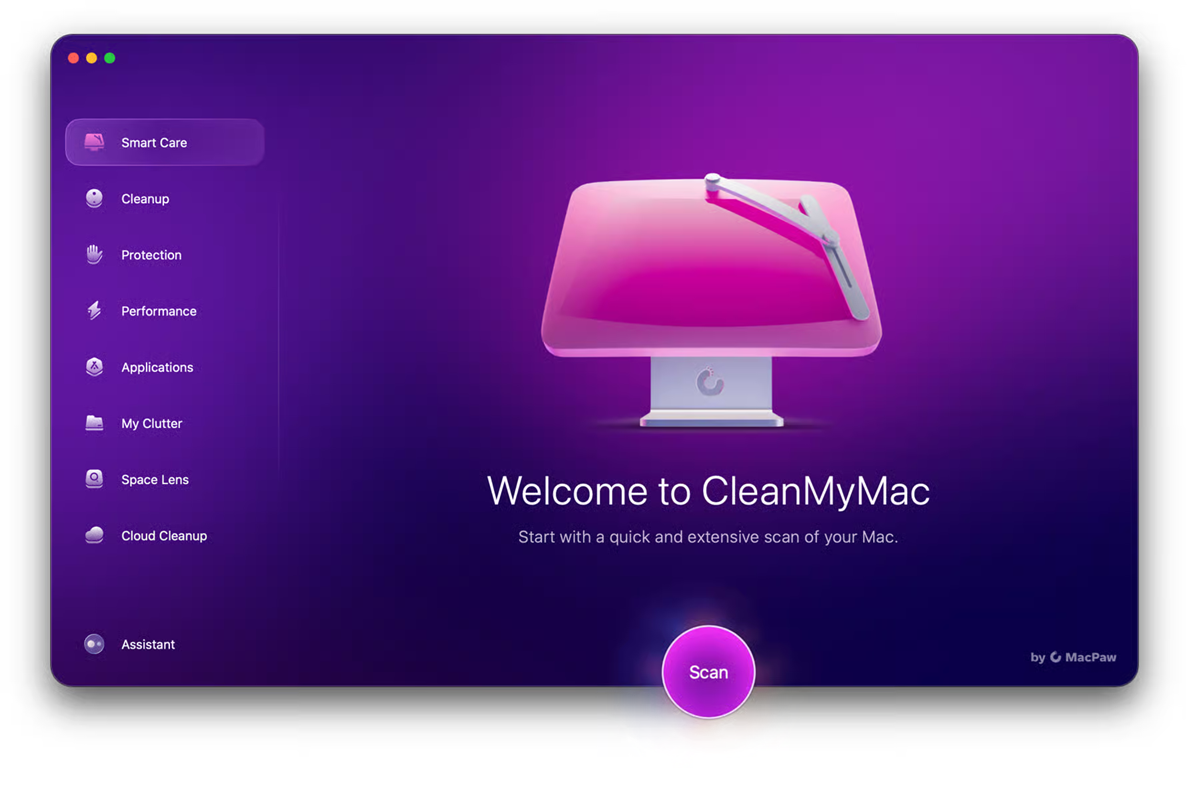
Cleaners and Optimizers: Empty Promises and Real Risks
"Your Mac is 87% loaded! Urgent cleaning needed!" Or: "Speed up your MacBook twofold with our program!" Familiar banners. All this marketing preys on user anxiety — and works precisely because the numbers look convincing. In reality, the benefit is almost nil, and the risks are quite real.
CCleaner was hacked in 2017. More than two million users were exposed to malware. Separately — the privacy policy: the company collected personal data and sold it to advertisers.
MacKeeper is an even more telling story. A hack with a data leak of 13 million users, endless complaints about the program hanging in the background, eating resources, and being nearly impossible to fully remove.
The bottom line: macOS manages cache, temporary files, and memory itself. A cleaner finds "junk," deletes a few hundred megabytes of cache that will be recreated in a few days, and shows a pretty report. Meanwhile, it weighs more than what it deleted.
MacBook running slow? Just restart. In nine out of ten cases, it helps. Everything is really bad — back up data, format the disk, clean install macOS. An hour of work, the system is like new, without subscriptions or questions.
The one exception — AppCleaner. A small utility for fully removing apps along with all associated files. A specific task, no background work, no subscription, no spying. Everything else in this category — pass.
Free VPNs: You Are the Product
VPN has become a familiar tool: bypassing restrictions, working from public networks, an extra layer of privacy. The logic is simple — search "free VPN," download the first result. And that's where the real problems begin.
Free VPNs don't exist out of altruism. Server infrastructure costs money, and if the service doesn't charge the user directly — it charges otherwise. The most common approach: collecting traffic data and selling it to advertisers. You think you're protecting your privacy, but in reality you're handing it to other hands.
Some free VPNs go further: they route other people's traffic through the user's device. A stranger in another country downloads something through your IP address. If they download something illegal — the questions come to you.
Even among paid VPNs, the choice requires attention: the service should have a verifiable no-logs policy and a history of independent audits. Mullvad, ProtonVPN, IVPN — services with proven reputation. An unknown service with a pretty landing page and zero reviews — no.
The main rule to remember: if a VPN is free and unverified — you are the product. Your data, your traffic, your privacy. Don't economize on security.
What to Replace With
Problematic |
Safe Alternative |
Google Chrome |
Safari or Arc |
Third-party antivirus |
Built-in macOS tools (Gatekeeper, XProtect, FileVault) |
CCleaner, MacKeeper, CleanMyMac |
Restart or clean macOS install |
Free VPN from search |
Mullvad, ProtonVPN, IVPN |
Dubious browser extensions |
Minimum extensions, only with proven history |
The Bottom Line
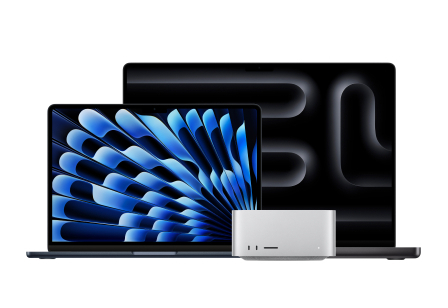
The MacBook is a well-protected system. Apple has built in several layers of security that work quietly and without user intervention. Problems more often start not from a lack of protection, but from the user bypassing it themselves: installing a resource-hungry browser, adding unverified extensions, paying for an unnecessary cleaner, downloading a VPN with a pretty name.
Aware app choice is the best protection. Not paranoia and not endless audits, but a simple habit: check reviews, read what permissions an app requests, and remove what you haven't used in a while. The MacBook handles the rest on its own.
You can check prices for all MacBook models and compare configurations in the Techno Buyer catalog.
0 comments