




.png)






.png)


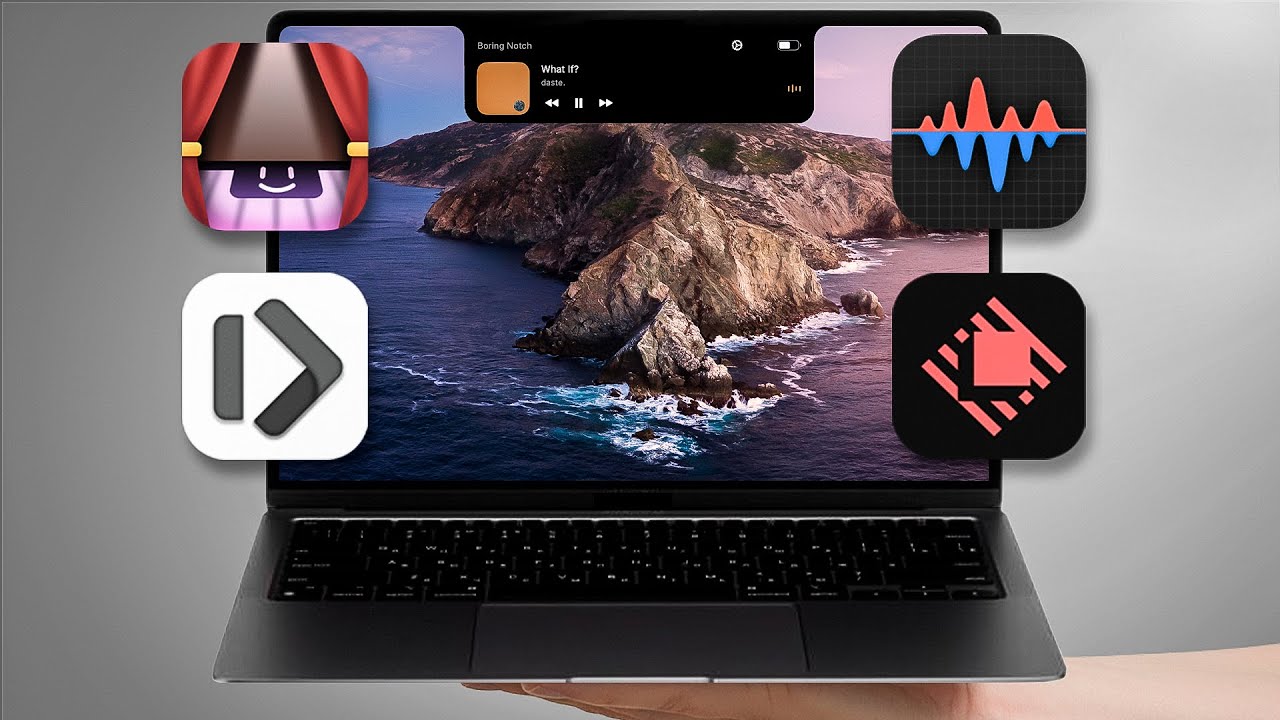
Imagine: you bought a good car but only drive in first gear. The car goes. Doesn't break down. But you don't even know what you're missing.
That's how most people use a MacBook: Safari or Chrome, the standard Spotlight, the built-in window manager. It works — and that's fine.
Below are nine apps that change this. Most are free. One slows battery degradation by half — and that's not a marketing claim, it's electrochemistry. You can install them right now, and the effect is visible the same day.
ChatGPT Atlas: A Browser with a Brain Inside
This list previously featured Arc. The developers shut down the project — which became the reason to find a worthy replacement. Found it: ChatGPT Atlas.
The main feature is built-in ChatGPT right in the sidebar. You open a complex article, don't understand the context, or want to clarify a term — click the button, ask a question, get an answer. No new tabs, no window switching, no losing context. All in one place.
The second point is performance. Chrome is known for its appetite for RAM: opened 10 tabs, and the fans are already spinning. Atlas is significantly better optimized. 15 open tabs — the MacBook runs quietly and smoothly. Less CPU load, less battery drain.
Plus a minimalist interface without extra noise. Everything's in place, nothing needs to be configured for hours. Essentially, it's Chrome — but faster, prettier, and with a thinking sidebar.
Raycast: Spotlight That Can Do Almost Everything
This app is mandatory for every Mac owner. Not an exaggeration.
Raycast replaces the standard Spotlight. You invoke it with a keyboard shortcut and get access to search, app launching, and a bunch of commands that work several times faster than a mouse. But that's just the surface.
Window management. Ten windows open, all overlapping — one command, and the needed window takes up exactly the left half of the screen. Another command — the second window on the right. Order in a second.
Clipboard history. Copied important text, then accidentally copied something else, the first one was lost — familiar? With Raycast, the entire copy history is available at any moment. Pull up what you need in seconds.
Community plugins. A huge library of extensions: download YouTube videos without dubious sites, a color picker for designers, a "hide all apps" command with one click.
All of this is free. There's a Pro subscription with cloud sync and built-in AI — but the base version covers 90% of needs.
Boring Notch: The Display Cutout Stops Being Annoying
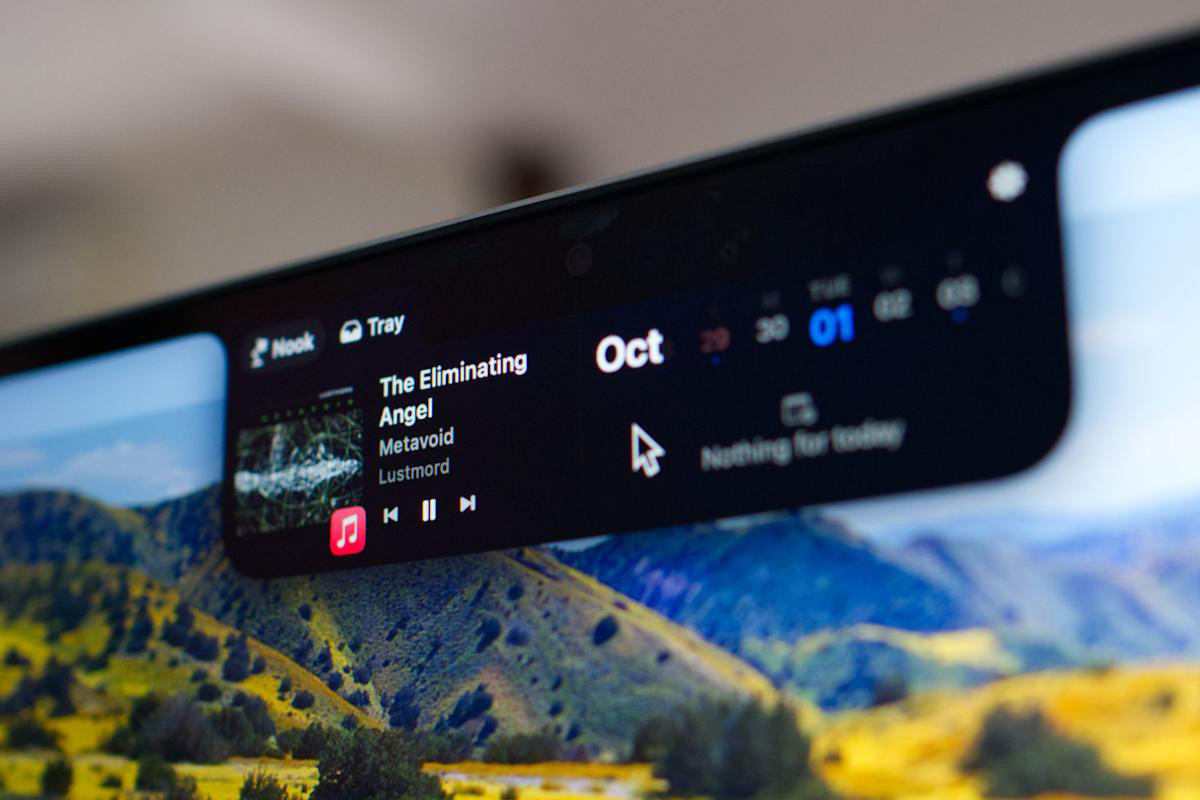
You have a MacBook with a notch — that black island at the top of the screen that just exists and isn't needed for anything. Boring Notch turns it into a working panel.
Hover the cursor over the cutout — it expands and shows widgets. On the left, a music player: switch tracks and see what's playing, right from there. On the right — a calendar with upcoming events, so you don't have to check your phone. There's also a shelf for files: drop a document into the cutout, it "hangs" there, then you pick it up where needed.
Everything is customizable. Boring Notch is open source, the community is active, extensions appear regularly.
LocalSend: AirDrop Beyond Ecosystem Boundaries
AirDrop only works within the Apple ecosystem. Need to send a file to an Android phone or a colleague's Windows laptop — the dance begins: Telegram, WeTransfer, cloud drives.
LocalSend solves this without intermediaries. The app works on macOS, Windows, Linux, and Android and transfers files over the local network directly — no servers, no internet. Transfer speeds are high.
The scheme is simple: open LocalSend, see all devices on the network, select the file, tap the target device. On the other end, a notification: "accept or decline." Tap accept — the file is already there.
If there's even one non-Apple device in your environment — LocalSend becomes a permanent app.
Hidden Bar: Menu Bar Without Icon Clutter
Over time, the menu bar on Mac turns into chaos. Every new app adds an icon, they encroach on the center, overlap the time and system indicators.
Hidden Bar hides everything unnecessary with one click. Setup takes a minute: hold Command, drag icons to different sides of a divider. What's on the left — always visible. What's on the right — hidden, but accessible with one click.
Only what's genuinely needed remains: Wi-Fi, battery, volume, clock. Everything else is out of sight.
For those who need finer control, there's the paid Bartender with advanced rules and automation. But for most tasks, Hidden Bar is perfectly sufficient — and it's free.
Stats: X-Ray for Your MacBook
Apple Silicon processors are powerful. The MacBook Air edits video, holds hundreds of tabs, and doesn't complain. But sometimes it's useful to understand what's really happening inside.
Stats displays all statistics right in the menu bar: CPU load, RAM consumption by app, temperature, network activity. All in real time, with clear graphs.
The practical value is specific. You see the CPU at 90%, memory almost full — time to close something unnecessary before slowdowns begin. Or you notice one app consuming disproportionately many resources when it shouldn't. Close it — everything's back to normal. Without Stats, you only find out when the Mac is already lagging.
Clocker: Time in Multiple Cities at a Glance
Without Clocker, a call with a team in another time zone starts with Googling "current time in Dubai," calculating the difference in your head, and figuring out when that will be for you. Every single time.
With Clocker: click the icon in the menu bar — immediately see several configured cities. Dubai, London, Los Angeles — all at a glance.
The main feature is the timeline scroller. Scroll forward or backward and immediately see what time it will be in all zones in three or six hours. Scheduling calls takes seconds. Plus calendar integration: upcoming events are visible right under the clock.
The app consumes almost no resources — add the needed cities and you're done.
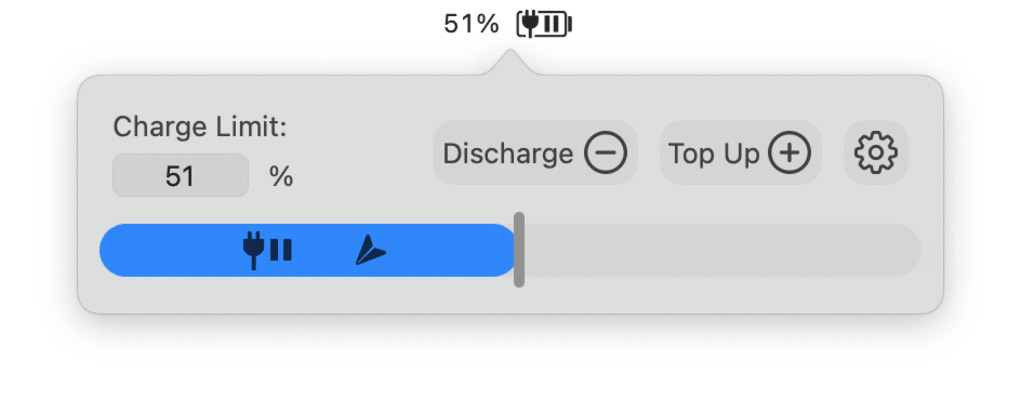
AlDente: Battery Degrades Slower — It's Chemistry, Not Marketing
Lithium batteries wear out faster when constantly charged to 100%. If a MacBook is always plugged in, after a year or so the battery capacity noticeably drops. Replacing a MacBook battery is expensive.
Apple long ago added an 80% charge limit for iPhone. AlDente does the same for Mac.
You set a limit — say, 80% — and the MacBook no longer charges above that mark, even if it's plugged in all day. With Apple Silicon, 80% battery is enough for a full workday: the chips are so efficient that the 20% capacity difference isn't felt in practice.
But in a year or two, the battery will be in significantly better condition than those who didn't use AlDente. One app — real savings on service in the future.
Rectangle: Windows in Place in 10 Seconds
Raycast has basic window management. Rectangle goes further: more layouts, more shortcuts, more control.
Several windows open — browser, code, messenger, document. All scattered. One shortcut — window to the left half of the screen. Another — to the right. A third — a third. A fourth — full screen. Order in ten seconds without a single mouse movement.
Available layouts: half screen in any direction, third, two-thirds, quarter, center with custom sizes, full screen. Each has its own shortcut. Multi-monitor support with independent settings for each.
After a week of use, your hands automatically reach for these combinations. Dragging windows with the mouse starts to seem like a strange activity.
What to Install First
If installing everything at once — start with three apps that give an immediate effect:
- AlDente — install and set the charge limit to 80%. The battery will thank you in a year
- Raycast — replaces Spotlight, immediately makes it clear why it's needed
- Rectangle — configured in five minutes, changes window management forever
The other six install as needed: Hidden Bar — if the menu bar has already become a dump, Clocker — if there are colleagues in other time zones, LocalSend — if file transfer beyond the Apple ecosystem is needed.
You can check current MacBook models with fast delivery in the Techno Buyer catalog.
0 comments